
Fahrtenbuch manual
Please check the Fahrtenbuch manual before sending a support request – usually your question has already been answered here. Thank you & have a good trip!
Download the manual as PDFPDF · 6,8 MB · updated 23 Nov 2026Fahrtenbuch general
ManualWhere can I find a manual?
You're already looking at it!
For the most important questions that may not be self-explanatory, please use this section – every update brings new improvements. You can also download the manual as PDF. Apart from that, the functions are self-explanatory after a little "getting used to". Please only use the contact form for problems not covered here. Visit this page regularly – new entries and changes are marked accordingly!
A short introduction to Fahrtenbuch as a 🎧podcast to download and listen to in the car (in German) ;-)
Tip: Many users aren't familiar with the basic functions of the iPhone | Here you'll find the Apple iPhone manual | iPad manual as a web version, and the iOS manuals are also available as iBooks for iPhone manual | iPad manual! An overview of the Apple manuals.
Please download Android device manuals from the respective manufacturer – the range of Android devices is too fragmented to link all manuals here; they're available on the manufacturers' websites.
Fahrtenbuch costsApp price, in-app purchases, a subscription – what do I need? Updated
Fahrtenbuch: fair, flexible and transparent!
From the second year on, Fahrtenbuch is cheaper than a classic paper mileage log. Since 2009 we've provided all updates free of charge. Our goal is to keep the app as affordable and accessible as possible – that's why the base price already includes all functions for a tax-compliant mileage log. Please read the introduction to using Fahrtenbuch.
Flexibility without a mandatory subscription
At the request of many customers, the base price stays low, without a subscription or account, while the app can be customized with optional extensions. If that doesn't suit you – no problem: all in-app purchases are voluntary and clearly marked. Almost all additional functions are also available as a one-time purchase. This modular principle makes it possible to adapt Fahrtenbuch optimally to individual needs – especially given the many different use cases.

A short personal note
The two of us have been developing Fahrtenbuch in Germany since 2009. Given the low price structure on the App Store, by the way, we can't make a living from this app alone. Nevertheless, we stick to a low base price and maximum transparency:
✔️No personal data leaves your device ✔️ No sharing or use of data ✔️ No ads ✔️ No account required ✔️ No subscription required ✔️ No additional hardware
To keep developing Fahrtenbuch in the long term, we're delighted with every user who takes out our optional subscription. It helps us keep improving the app and providing new functions.
We know users would like all functions for free – but a lot of work and passion goes into Fahrtenbuch. So we ask for your understanding that we can't offer our software for free. After all, you surely expect to be paid for your work, too. Unfortunately, we keep seeing demands in reviews to provide extensions for free – yet it's precisely our fair pricing that makes continuous development of the app possible.
😍 A big thank-you to everyone who appreciates Fahrtenbuch, supports us and motivates us with positive reviews! Especially with a Fahrtenbuch Pro subscription you help us keep improving and developing the app.
In detail:
Even if our cost structure may seem a little complex at first glance, it's actually quite simple and consistently geared to our customers' needs: you only buy and pay for what you actually need.
The basis is the app, which you buy once in the Apple App Store or Google Play Store. We recommend also unlocking exact route recording (including the autostart function) as a one-time purchase. This gives you a solid basis with which you can keep a tax-compliant mileage log without limits and for any number of vehicles.
Some of our customers have been using Fahrtenbuch this way for almost 20 years – for a total of just €15 in one-time costs. By the way: since 2009 we haven't charged for a single update. All updates were and are free for our customers.
To avoid a high entry price for the app, we also offer various optional in-app purchases with which you can extend the range of functions to suit your personal requirements. All of these purchases are one-time and incur no ongoing costs.
In addition, there are optional subscriptions, for example Fahrtenbuch PRO. It includes all in-app purchases as well as further functions that can't be bought individually. All future functions and developments are included too. Many of our long-standing customers deliberately choose this option and thereby also support the continuous development of Fahrtenbuch.
If you also need end-to-end encrypted synchronisation of your vehicles, which requires corresponding server capacity, we offer Fahrtenbuch Share. It lets you securely sync and share your vehicles between different devices.
If you'd also like to edit your mileage log on the computer, Fahrtenbuch Share can be extended with desktop use for just under €5 per year. Here too, we deliberately avoid a flat price for everyone: directly in the app you can choose how many vehicles you want to sync. Based on that, the lowest price for your actual needs is shown automatically.
Our basic idea: you decide which functions you need – and only pay for those.
SetupWhat's the best way to get started? Updated
Very easy:
- 1
Install the app
Download it from the App Store or Google Play. - 2
Add your vehicle
Enter your vehicle with its basic data. - 3
Enter the mileage
Enter the current odometer reading as your starting value.
Create your vehicle | vehicles and enter the exact ☞ starting mileage of your | each vehicle before your first trip – the value can't be changed later!
⚠️PLEASE NOTE | If you're just starting to use Fahrtenbuch, we advise against recording your trips straight away with the autostart and autostop functions. It makes sense to start and end trips "manually" at first while you get used to the app, to get a feel for the functions. Fahrtenbuch also learns: routes you've driven before are recognized, so it's important that trips are created correctly from the very first trip and saved with the appropriate reasons and kilometres, so that this data can be "pulled in" automatically next time!
Every now and then there are customers who expect to install Fahrtenbuch in January, take it out of their pocket again in December and find everything done automatically – this is NOT the case.
Fahrtenbuch replaces a paper mileage log, but digitally, too, the content "lives" from careful recording. This applies especially to closed mileage logs kept tamper-proof!
The normal routine after the initial configuration (starting mileage, vehicle and driver setup):
1. Tap "Create trip" (green) and check the position, choose a reason if needed, check the kilometres.
2. Tap "Start driving" – "Create trip" becomes "End trip" (red).
3. Now you can close the app with the iPhone | Android "Home" button.
4. When you arrive, start Fahrtenbuch again, tap "End trip", check and correct your data if necessary (your car's mileage etc.), then tap "Save" at the top right.
Even when using "Exact route recording", minor corrections may be needed here, because with good reception Fahrtenbuch records more precisely than your car's odometer – which only measures wheel revolutions, can vary greatly depending on summer | winter tyres and wear, and is anything but GPS-accurate. Also note the reception tips further down. If necessary, compare the odometer reading after each trip, just as with a paper log, and possibly do without the autostart and autostop functions for the first 14 days while you get to know the functions!
Yes – Fahrtenbuch asks for access to location and contacts! – It's supposed to. No data leaves your device in the process. We keep having support effort because users deny access – don't do that; you don't deny a compass access to the North Pole either. Fahrtenbuch costs really little pocket money, and in return it contains no ads, your data remains your data, and we take that very seriously. See also our ☞ privacy notice!
Yes – you really only enter your destination when you get there! – Because your position at the destination is determined by GPS! Unfortunately it keeps happening that, when starting the app for the first time, users "forbid" the app to use the iPhone's location at all – if this switch is set to "0", turn it on in the iPhone settings under Location Services. Now Fahrtenbuch can use location at all! Take your time getting used to it – it's worth it.
For accurate "tracking", enable ☞ exact route recording and, if possible, charge the phone while driving on longer journeys. This in-app purchase came about at customers' request, so that customers who keep Fahrtenbuch "manually" don't have to pay for the tracking functionality. Without "exact route recording", the distance driven is only estimated using route planning and doesn't correspond to the real route – but some customers want to keep their mileage log with manually entered kilometres, so the suggested kilometres are only a guide.
However, we strongly recommend using ☞ exact route recording!
Always note the hints and tips in the ☞ manual! Where should Fahrtenbuch be while driving to ensure good GPS reception and record the route as well as possible:
✓ In a phone holder "with a clear view of the sky"
✓ In a phone holder on the dashboard
✓ In a phone holder on the windscreen
✓ In the centre console "with a clear view of the sky"
✓ On the dashboard / anti-slip mat
☞ You'll find links to phone holders here!
Where Fahrtenbuch should not be while driving, because GPS reception gets worse and the route may not be recorded correctly:
✗ In the glove box
✗ Starting | ending trips in a multi-storey car park
✗ In the centre armrest
✗ In the boot
✗ In your trouser pocket
✗ In your back pocket
✗ In your laptop bag
✗ In your jacket
✗ In your backpack
✗ In the leg pocket of cargo trousers
You'll find more important information for getting started here: ☞ Important Fahrtenbuch settings! ☞ Tax office | Is Fahrtenbuch accepted by every tax office?
☞Enable tamper protection | How do I do that?
☞ Create the starting mileage | How do I do that?
☞ Reasons | What do the symbols mean?
☞ Can I record the exact route driven?
☞How often should I export my trips? ☞ Manual
ATTENTION ANDROID USERS – PLEASE BE SURE TO READ! ☞ If you use an Android Samsung device, make sure to permanently allow Fahrtenbuch location access in the Samsung power saving settings! In app power monitoring you must exclude Fahrtenbuch to ensure route recording! You'll find the setting under: Settings -> Device care -> Battery -> ☞ If you use an Android device from another manufacturer with special power saving functions, note the "energy saving modes" of various manufacturers – Fahrtenbuch may need permanent "whitelisting" to allow location and to prevent the operating system from simply closing Fahrtenbuch in the background! In app power monitoring you must exclude Fahrtenbuch to ensure route recording! ☞ If you use an Android device with a virus scanner or "app lock", make sure you allow Fahrtenbuch to run! ☞ If you use an Android device with LineageOS – the change also affects users who install other custom ROMs on their Android devices. Alternative operating systems such as LineageOS come without an official Google certificate. So that such users can still use Google location services, Google gives them the option to ☞ register their smartphone manually. Afterwards the phone can be used as usual. If you can't use Google location services, you'll otherwise only see a straight line in your recording – so we strongly recommend registering the services in order to use Fahrtenbuch normally and get optimal recording results!
Tax officeIs Fahrtenbuch accepted by every German tax office?
Unfortunately there is no central authority in Germany that approves mileage log software or mileage log apps. The iPhone mileage log cannot replace your tax advisor and doesn't intend to. However, the software specifically takes into account the requirements set by case law (cf. BFH, judgment of 21.03.2013 – VI R 31/10 = NJW 2013, 3053), which result among other things from § 8 (2) sentence 2 of the German Income Tax Act (EStG). The term "proper mileage log" within the meaning of this provision, which the law does not define further, has been clarified by the case law of the Federal Fiscal Court (BFH): according to the wording, meaning and purpose of the provision, the records serving as proof of the taxable private share of total mileage must offer sufficient assurance of their completeness and accuracy and must be verifiable for their material accuracy with reasonable effort. *From version 9.3.1 a ☞ certified GoBD export interface is implemented, which you can optionally unlock as an inexpensive in-app purchase in the event of a tax audit to get a GoBD-compliant export of your data.
☞ Download the certificate as PDF!

A proper mileage log must be kept promptly and in a closed form, so that subsequent insertions or changes are ruled out or recognizable as such. In addition to the date and destinations, it must generally also state the customer or business partner visited – or, if there is none, the specific subject of the business activity. Mere place names in the log are sufficient at most if the customer or business partner visited can be identified beyond doubt from the place, or if their name can easily be determined with the help of documents that themselves need no further completion. Accordingly, the trips to be recorded, including the total mileage reached at their end, must be shown in the log completely and in their continuous sequence. In principle, every single business use must be recorded on its own together with the vehicle's total mileage at the end of the trip. However, if a single business trip consists of several legs, these legs can be combined into one summarizing entry. It is then sufficient to record the total mileage reached at the end of the whole trip, provided the individual customers or business partners are listed in the log in the chronological order in which they were visited.
If, however, the business use of the vehicle is interrupted for private use, this change of use – because of its different tax consequences – constitutes a break that must be documented in the log by stating the mileage reached at the end of the business trip (cf. BFHE 211, 508 = BStBl II 2006, BSTBL 2006 II, 408 = NJW 2006, 2143; BFHE 211, 513 = BStBl II 2006, BSTBL 2006 II, 410 = NJW 2006, 2063; BFHE 212, 546 = BStBl II 2006, BSTBL 2006 II, 625 = NJW 2006, 2142; BFH, BFH/NV 2007, 691 = BeckRS 2006, 25011114; BFHE 221, 39 = BStBl II 2008, 768 = NJW 2008, 2671).
However, a mileage log only provides sufficient information about the trips, to the required extent and without the possibility of subsequent manipulation, if not only the number of kilometres driven but also the start and end points of the trips are named concretely enough. Without this information, one could at most see the distance driven on each day and determine the area in which the vehicle may have been, without being able to judge what purpose the respective trips served. This information must be given in the log itself (BFHE 236, 497 = BSTBL 2012 II, 505 = NJW 2012, 2751; Schneider, NWB 2012, 1892).
Optionally, you can export the data daily and import it into e.g. WISO, DATEV, Euro-Fahrtenbuch, Fahrtenbuch Express, Lexware, Steuerpilot or INtex Fahrtenbuch. You'll find an overview of our interfaces here. For desktop solutions we offer an interface as an in-app purchase at a very low price. Please note: if you record data for the tax office, you should export it ideally daily, but at least weekly, and import it into your external solution to ensure "prompt recording".
You'll find the switch for enabling "tamper protection" when you tap your "licence plate" in the app and then the small blue "i". This setting cannot be undone! Changes to saved trips are logged from then on. You should enable tamper protection if the iPhone mileage log is needed, for example, to create a PDF file for the tax office. Enabled tamper protection is "printed" on the PDF. In addition, since version 5.0.7 there is continuous page numbering with a unique document ID per PDF. So there is no "loose-leaf collection" – each printed mileage log contains a unique ID that prevents individual pages from being changed or added.
Here you'll find more tips on setting the export period.
Since version 3.6.5 you can set the switch "Cancelled trips" visible to "1" in the mileage log settings. This shows changes to the mileage log not only in the "PDF" export but also directly on the iPhone!
If you don't use any Mac | PC desktop software to import your trips, you should set the switch "Change log" to 1 in the iPhone mileage log (for each vehicle)! Manual changes are then logged in the PDF export – making them traceable for the tax office in a "tamper-proof" way, which meets the requirements of BFH case law.
Please also note, however, that the tax office judges your mileage log by its content and that you are responsible for the accuracy of the information. Whether a mileage log is accepted is decided solely by the tax office. We therefore cannot guarantee its acceptance.
*From version 9.3.1 a ☞ certified GoBD export interface is implemented, which you can optionally unlock as an inexpensive in-app purchase in the event of a tax audit to get a GoBD-compliant export of your data.
This makes Fahrtenbuch the very first mobile mileage log to offer such an export, which tax offices can read in electronically – complete with procedure documentation. This option is of course an optional in-app purchase that you usually won't need, but it massively increases the security of being prepared for the future. We're delighted to have fully met this request from many tax advisors who use our software since version 9.3.1. ☞ Download the certificate as PDF!
At this point, we'd like to point out once again that a handwritten mileage log is much easier to manipulate than our digital mileage log! You sign for the accuracy of your information and are solely responsible for it. We recommend always agreeing its use with your employer | tax advisor | tax office | authority etc. (depending on for whom you want or need to keep your mileage log). All information, calculations and content of this app are compiled with care. However, they do not replace tax, legal or other professional advice. At this point, many thanks to all customers | tax advisors | tax offices who have been recommending | accepting our app for years and thus appreciate the great deal of work and love that has gone into its development.
Talk to your tax advisor!
Have a good trip!
You'll find more important information on this topic here:
☞ How often should I export my trips?
☞ Enable tamper protection | How do I do that?
☞ Can I record the exact route driven?
Tax officeIs there a certified GoBD interface?
Of course – Fahrtenbuch is the very first mileage log with a certified GoBD interface. Since version 9.3.1, a certified GoBD export interface has been implemented, which you can optionally unlock as an inexpensive in-app purchase in the event of a tax audit (on request) to get a GoBD-compliant export of your data. This makes Fahrtenbuch the very first mobile mileage log to offer such an export, which tax offices can read in electronically – complete with procedure documentation. This option is of course an optional in-app purchase that you usually won't need, but it massively increases the security of being prepared for the future. We're delighted to have fully met this request from many tax advisors who use our software since version 9.3.1, and we thank our certification partner audicon for the cooperation. Here you'll find all tax office details.
☞ Download the certificate as PDF! 
Release notesWhere can I find the latest release notes?
Always in the current ☞ changelog!
SettingsImportant Fahrtenbuch settings!
Fahrtenbuch works best if you note the following – technologies and apps react sensitively to changes. A wrong setting can stop your mileage log from working properly. So follow this checklist to make sure your mileage log has the right smartphone settings!
1. ⚠️ Location access must be set to "Always allow"
We know some people find it annoying that Fahrtenbuch wants access to the location at all times. Unfortunately, though, this is necessary to ensure optimal function.
Users often ask us why "always" and not just "while using the app". It's quite simple. Choosing "always" doesn't mean Fahrtenbuch uses your location always and at all times. It only means you allow Fahrtenbuch to access your location when needed. This is the only way Fahrtenbuch can record your location after connecting to the smartphone and work optimally. Your location data never leaves your phone, and Fahrtenbuch doesn't store this data on third-party servers in any way. Privacy is our top priority!
2. ⚠️ Bluetooth must be "on" when the autostart function is enabled
For your mileage log to work with an iBeacon, you must enable Bluetooth. Only then can the ☞iBeacon connect to your smartphone. Without a connection, ☞autostart may not work!
3. ⚠️ "Low Power Mode" must be off!
When you enable Low Power Mode, you allow your smartphone to reduce or even disable all background activity. This impairs the functionality of your mileage log and also causes problems if you use the autostart function. By the way, why you should never force-quit apps either was already ☞summarized here by Stern in 2022 (in German) – especially since important background services can then no longer work correctly.
4. ⚠️ "Mobile data" is required
Mobile data is essential for Fahrtenbuch to work properly. Without data access, Fahrtenbuch can't determine the names of places. Make sure there's an active connection – data usage is minimal!
5. ⚠️ Allow "Background App Refresh"
As already mentioned, with the ☞autostart function enabled, Fahrtenbuch runs in the background without you having to do anything. This automation requires you to allow the Fahrtenbuch app to refresh in the background. Go to "General" in your smartphone settings and choose "Background App Refresh". Then select the Fahrtenbuch app and allow background refresh. As mentioned, your location data never leaves your phone!
6. ⚠️ Allow "Notifications"
By allowing notifications, you make sure Fahrtenbuch can send you notifications. Notifications can be sounds, push notifications and important information from your mileage log. Configure this in your smartphone settings under "Notifications" and find the Fahrtenbuch app there.
(7). ATTENTION ANDROID USERS – PLEASE BE SURE TO READ! ☞ Our app also works perfectly on Android. ⚠️ However, please check the permissions once, as newer Android versions regularly downgrade them ("for security reasons"). If necessary, disable the automatic removal of permissions in the app's permission settings to stop this behaviour! ☞ All details on the Android settings here! Important:
Location = Allowed all the time
Nearby devices = Allow
Files and media should also be allowed – this is needed for exports and backups on the device.
(Everything of course happens only on your device; we don't receive any location data or the like from you.) ☞ If you use an Android Samsung device, make sure to permanently allow Fahrtenbuch location access in the Samsung power saving settings! In app power monitoring you must exclude Fahrtenbuch to ensure route recording! You'll find the setting under: Settings -> Device care -> Battery -> ☞ If you use an Android device from another manufacturer with special power saving functions, note the "energy saving modes" of various manufacturers – Fahrtenbuch may need permanent "whitelisting" to allow location and to prevent the operating system from simply closing Fahrtenbuch in the background! In app power monitoring you must exclude Fahrtenbuch to ensure route recording! ☞ If you use an Android device with a virus scanner or "app lock", make sure you allow Fahrtenbuch to run! ☞ If you use an Android device with LineageOS – the change also affects users who install other custom ROMs on their Android devices. Alternative operating systems such as LineageOS come without an official Google certificate. So that such users can still use Google location services, Google gives them the option to ☞ register their smartphone manually. Afterwards the phone can be used as usual. If you can't use Google location services, you'll otherwise only see a straight line in your recording – so we strongly recommend registering the services in order to use Fahrtenbuch normally and get optimal recording results!
- 1–6 These notes apply to both iOS and Android devices!
Safe travels, always.
AndroidImportant Android settings!
ATTENTION ANDROID USERS – PLEASE BE SURE TO READ! ⚠️ Important: Location = Allowed all the time
Nearby devices = Allow
Check that you have the latest available ☞ Fahrtenbuch version. Also allow Files and media – this is needed for exports and backups on the device.
(Everything of course happens only on your device; we don't receive any location data or the like from you.) ⚠️ However, please check the permissions once, as newer Android versions regularly downgrade them ("for security reasons"). If necessary, disable the automatic removal of permissions in the app's permission settings to stop this behaviour! You'll find a very good article on this topic ☞ at Tutonaut (in German)! ⚠️ With the autostart function enabled, we sometimes get bad ratings because a "red 1" appears on the app icon as a notification. Android requires us to do this – don't want this behaviour? No problem at all: simply disable this type of notification in your Android notification settings – done! ⚠️ If you use an Android Samsung device, make sure to permanently allow Fahrtenbuch location access in the Samsung power saving settings! In app power monitoring you must exclude Fahrtenbuch to ensure route recording! You'll find the setting under: Settings -> Device care -> Battery -> ⚠️ If you use an Android device from another manufacturer with special power saving functions, note the "energy saving modes" of various manufacturers – Fahrtenbuch may need permanent "whitelisting" to allow location and to prevent the operating system from simply closing Fahrtenbuch in the background! In app power monitoring you must exclude Fahrtenbuch to ensure route recording! ⚠️ If you use an Android device with a virus scanner or "app lock", make sure you allow Fahrtenbuch to run! ⚠️ Android beta versions are not supported – using beta versions is at your own risk, especially if you don't develop software yourself. ⚠️ Fahrtenbuch works best if you note the following – technologies and apps react sensitively to changes. A wrong setting can stop your mileage log from working properly. So follow this checklist to make sure your mileage log has the right smartphone settings!
Location access must be set to "Always allow"
We know some people find it annoying that Fahrtenbuch wants access to the location at all times. Unfortunately, though, this is necessary to ensure optimal function.
Users often ask us why "always" and not just "while using the app". It's quite simple. Choosing "always" doesn't mean Fahrtenbuch uses your location always and at all times. It only means you allow Fahrtenbuch to access your location when needed. This is the only way Fahrtenbuch can record your location after connecting to the smartphone and work optimally. Your location data never leaves your phone, and Fahrtenbuch doesn't store this data on third-party servers in any way. Privacy is our top priority!
⚠️Allow "Notifications"
By allowing notifications, you make sure Fahrtenbuch can send you notifications. Notifications can be sounds, push notifications and important information from your mileage log. Configure this in your smartphone settings under "Notifications" and find the Fahrtenbuch app there. PLEASE NOTE ⚠️ on Android 16, notifications must be allowed for background services to work at all!
⚠️Bluetooth must be "on" when the autostart function is enabled
For your mileage log to work with an iBeacon, you must enable Bluetooth. Only then can the ☞iBeacon connect to your smartphone. Without a connection, ☞autostart may not work!
⚠️"Power saving mode" must be off!
When you enable power saving mode, you allow your smartphone to reduce or even disable all background activity. This impairs the functionality of your mileage log and also causes problems if you use the autostart function.
⚠️"Mobile data" is required
Mobile data is essential for Fahrtenbuch to work properly. Without data access, Fahrtenbuch can't determine the names of places. Make sure there's an active connection – data usage is minimal!
⚠️Allow "background refresh"
As already mentioned, with the ☞autostart function enabled, Fahrtenbuch runs in the background without you having to do anything. This automation requires you to allow the Fahrtenbuch app to refresh in the background. Go to "General" in your smartphone settings and choose "Background refresh". Then select the Fahrtenbuch app and allow background refresh. As mentioned, your location data never leaves your phone!
⚠️If you use an Android device with LineageOS – the change also affects users who install other custom ROMs on their Android devices. Alternative operating systems such as LineageOS come without an official Google certificate. So that such users can still use Google location services, Google gives them the option to ☞ register their smartphone manually. Afterwards the phone can be used as usual. If you can't use Google location services, you'll otherwise only see a straight line in your recording – so we strongly recommend registering the services in order to use Fahrtenbuch normally and get optimal recording results!
TroubleshootingFahrtenbuch won't start anymore – what can I do?
There are situations between heaven and earth that even we as developers can't change (iPhone crashes, Android device resets, etc.) and that don't leave even the most stable database unharmed!
The most important rule is: IN SUCH A CASE, NEVER DELETE THE APP FROM YOUR DEVICE! (especially not if you don't have a backup that's guaranteed to work).
Contact us directly via the ☞ contact form – in all cases over the past years we've been able to solve the problems very easily!
In this context, please also look at the following links:
☞ Backup | restore – where is the data ☞ Rescue Fahrtenbuch If you have at least iOS 13, you can use this shortcut to email a copy of the database to yourself or to us – just open ☞ Rescue Fahrtenbuch directly on your iPhone! (Note that you have to temporarily allow ☞untrusted shortcuts for this)
If you don't know exactly what to do, the rule is:
IN SUCH A CASE, NEVER DELETE THE APP FROM YOUR DEVICE – your data will then very likely be lost forever and there's practically nothing more we can do for you! We don't store any customers, mileage logs, mileage log databases or backups on our servers! Privacy has top priority – you'll find all the details here. Always make your own current backups of your trips via the menu in Fahrtenbuch.
Fahrtenbuch closed by swipingWhy does a message appear?
We keep getting interesting feedback when customers force-quit Fahrtenbuch by "swiping" and a warning then appears.
Why does this happen?
Don't worry – Fahrtenbuch is as stable as you've been used to since 2009. However, Apple has given more complex apps the option of showing a warning when they're force-quit. The background: if an entry is being written to the Fahrtenbuch database at exactly that moment, in the worst case the database could be damaged.
Do you have to close Fahrtenbuch manually?
No. As with all other apps, there's no need to force-quit Fahrtenbuch. On the contrary: power consumption even increases if you regularly "kill" apps.
Here's a video that explains very clearly why apps should only be closed manually in an emergency:
Many thanks to Rafael Zeier for the excellent video! (Straight to the channel on YouTube, in German).
As mentioned elsewhere in the FAQ, no location data or similar information leaves your device. All data is stored exclusively on your device. Still, the warning keeps causing uncertainty. Its only purpose is to protect your database as well as possible. Please note: a database-based app like Fahrtenbuch can't be compared with a simple game or a trivial app.
Your operating system itself knows best when to send apps into "deep sleep" in the background – this applies to both iOS and Android.
Fahrtenbuch also needs active background services for autostart and Fahrtenbuch | Share synchronisation, among other things, so that its functionality can be guaranteed.
You'll find more information here:
⚠️Optimal iOS settings ⚠️ Optimal Android settings
Apple's official support documentation makes it clear: "When your recently used apps appear, the apps aren't open, but they're in standby mode to help you navigate and multitask. You should force an app to close only if it's unresponsive." -> Apple
Apps in the background are "frozen" and are severely limited in what they can do in the background, while releasing the RAM they use. Unfreezing a frozen app uses much less CPU (and energy) than relaunching an app that was force-quit. -> Daring Fireball: Public Service Announcement: You Should Not Force Quit Apps on iOS
Support usYou've released all updates for free since 2010 – can I support you?
Of course – that really helps us a lot, as do good ratings in the respective app stores.

We've ☞ summarized all the details here!
Fahrtenbuch ProDo I need a subscription?
Don't worry – just as since 2009, there will of course continue to be no paid updates and no mandatory subscription. Fahrtenbuch Pro is an optional offer that extends Fahrtenbuch in useful ways, but it offers clear added value through extended functions available exclusively to Pro users. Of course, Fahrtenbuch Pro is not required to keep Fahrtenbuch tax-compliant and tamper-proof. From Fahrtenbuch version 9.8.0 we're happy to offer customers corresponding added value in return for their support – value that isn't included in the Fahrtenbuch base version and will be expanded further in future. Fahrtenbuch Pro is thus another way to adapt Fahrtenbuch optimally to your own needs. Safe travels, always!
Additional Pro functionality: ✓ CarPlay Pro (incl. vehicle selection, from iOS 16) ✓ Exact route recording ✓ Autostart | autostop ✓ Fahrtenbuch Connect (BETA) ✓ Extended design (light | dark) ✓ Dynamic Island support (from iPhone 14 Pro) ✓ Eco speed profile (from iOS 16.2) ✓ Lock screen widget (from iOS 16) ✓ Extended Siri functionality ✓ Apple Watch extensions (complications) ✓ All future Pro functions
Fahrtenbuch ShareSetting up encrypted shared mileage logs Updated
Fahrtenbuch Share lets you use vehicles together with others and manage trips synchronised and end-to-end encrypted – or edit them directly on the computer with Fahrtenbuch Desktop.

☞ There's more good news – since 1 June 2026 a Fahrtenbuch Desktop client for Mac and Windows has been available.
From Fahrtenbuch version 9.9.0, you'll find the menu item "Optional extensions" in your mileage log's settings. Scroll to the third page. There you can activate Fahrtenbuch Share – simply for the number of vehicles you want to use the function for. That completes the first step. The price of Fahrtenbuch Share is calculated dynamically based on the number of vehicles or drivers, to offer the Share service as inexpensively as possible. The calculated price of the Share package is shown transparently in the app. You can also add the Fahrtenbuch Desktop option directly in the app – here too, the price is calculated dynamically to keep Share as affordable as possible.
All shared mileage logs are end-to-end encrypted. This means your data is not visible even to us and is stored exclusively fully encrypted on the server provided for synchronisation.
The costs incurred are fully covered by your Share activation – for exactly the number of vehicles you've activated. So you can share as many trips as you like, securely and encrypted.
⚠️PLEASE NOTE | An enabled power saving mode prevents synchronisation on both Apple and Android devices – so no synchronisation takes place in power saving mode. We strongly advise against using power saving mode.
⚠️PLEASE NOTE | Push notifications must be enabled – push technology is used in the background to push changes directly to the Share server.
Please also be sure to read the following FAQ articles:
☞ Fahrtenbuch introduction
☞ Important settings
☞ Important Android settings
(If you need additional support, we assume you're familiar with the content of these articles so that we can help you troubleshoot effectively should sync problems ever occur.)
Requirements
✓ Active Fahrtenbuch Share subscription.
✓ Mobile | Wi-Fi data connection.
✓ Fahrtenbuch app on the smartphone.
✓ At least one vehicle in the app.
How to set up Fahrtenbuch Share step by step
☞ Activate Share:
Open the vehicle sharing section in "Optional extensions", choose a suitable package and complete the purchase.
FahrtenbuchSettingsOptional extensions
Fahrtenbuch Share
You can cancel the subscription at any time in Settings. It renews automatically unless cancelled at least 24 hours before it ends.
- 1Choose the right Share package
- 2Set the number of vehicles
- 3Tap Continue
Fahrtenbuch SharePurchase complete
You have subscribed to the Share package with 1 vehicle.
☞ Choose a subscription and tap "Continue".
☞ After a successful purchase, the confirmation is shown.
(⚠️Please note: if you've ended your subscription and want to take it out again or renew it, the Fahrtenbuch Share extension must always be activated / reactivated on the device with which the original Share subscription was purchased.)
☞ Choose a vehicle:
In the main menu, tap the licence plate and then Share, and choose the vehicles you want. Here you can also use the + to invite vehicles on other devices that don't have a Share subscription.
FahrtenbuchMain menuLicence plate
Fahrtenbuch Share
- 1Tap Share
FahrtenbuchVehiclesShare
Fahrtenbuch Share
- 1Select the vehicle
- 2Tap Show QR code
☞ Start sharing:
Tap Show QR code.
☞ Choose a vehicle and tap "Share".
FahrtenbuchVehicles+
Vehicle sharing is also possible for users without a Share subscription. Others can share vehicles via your invitation without taking out a Share subscription themselves. Access is granted via QR code or Bluetooth.
- 1Choose Invite another vehicle
☞ Confirm sharing and generate the QR code.
☞ Share vehicle: status display and preparation for QR code generation.
☞ Pass the QR code to the recipient:
The code is valid for 5 minutes; the recipient scans it with the Fahrtenbuch app or opens the vehicle list (with Bluetooth sharing active).
FahrtenbuchShow QR code
The code is valid for 5 minutes. The recipient scans it with the Fahrtenbuch app.
RecipientFahrtenbuch Share
1 invitation found
4 vehicles found
- 1The shared vehicle appears as Invited
☞ Generate and display the QR code for sharing.
☞ The vehicle appears for the recipient:
After scanning or Bluetooth pairing, the vehicle appears for the invited user.
☞ For the logged-in user, the shared vehicle appears as "Invited"
Done!
⚠️PLEASE NOTE | Fahrtenbuch is transferred end-to-end encrypted – to be safe, please also make a backup of your Fahrtenbuch Share key (from version 9.9.25):
Notes on use
✓ Sharing is also possible for users without their own Share subscription.
✓ The maximum number of shared vehicles depends on the subscription.
✓ Sharing can be revoked at any time.
✓ Full end-to-end encryption.
Managing & cancelling the subscription
✓ Cancel at any time in the app settings.
✓ Automatic renewal if not cancelled in time.
✓ Sharing remains in place until the subscription ends.
FAQ and more information
✓ Shared vehicles: visible in the Vehicles section.
✓ Invite more users: repeat the process, generate the QR code again.
✓ Team use: every user can record trips and manage the vehicle.
Fahrtenbuch DesktopSetting up the encrypted desktop app for Mac and PC Updated
Setup is very easy, but requires a Fahrtenbuch Share subscription, since server capacity is used for automatic synchronisation. Our Fahrtenbuch app, version 9.9.18 or later, must be installed on the mobile device.
On the mobile device
Fahrtenbuch -> Settings -> Optional extensions -> Continue...
(⚠️PLEASE NOTE | Push notifications must be enabled – push technology is used in the background to push changes directly to the Share server.)
FahrtenbuchSettingsOptional extensions
- 1Turn on Fahrtenbuch Desktop
In the Share dialog, the Fahrtenbuch Desktop switch must be turned on.
(⚠️Please note: the Fahrtenbuch Desktop extension must always be activated on the device with which the original Share subscription was purchased.)
In addition, at least one vehicle must already have been selected and shared for Fahrtenbuch Share in the vehicle overview on the mobile device (tap your licence plate on the home screen).
Then simply download the desktop app. You can also start the app in the free demo mode first and get to know the functions at your leisure.
(⚠️Note for Windows users: during installation on Windows, a security notice from Microsoft may appear. In this case, click "More info" or "Advanced" and then "Run anyway" to continue the installation. This notice appears because the app isn't distributed via the Microsoft Store and is common for newer programs.)
Then start the desktop app on your computer. To sync your vehicles and edit them on the computer, all you have to do is scan the QR code shown with your mobile device.

Synchronisation is then set up automatically, and your shared vehicles are available directly in the desktop app.
Fahrtenbuch | MapsDo I need the Mac app?
Yes – there's no easier way to check, print, analyse, evaluate or export your iPhone mileage log as PDF, XLS or CSV on the Mac! With the built-in search filter you can filter the trips any way you like, e.g. to output all trips to a particular client as PDF.
You can export trips directly in CSV or Excel format, send your clients a PDF of your trips as an invoice attachment | proof of trips, etc. All recorded routes are shown directly on the map.
Of course you can also export the mileage log directly as a tamper-proof log for your tax return.
⚠️If you already use Fahrtenbuch Desktop on your Mac or PC, you usually don't need Fahrtenbuch | Maps. However, many Mac users value the app for pure analysis, and no subscription is required to use it.
You'll find more information on this topic here:
☞ Fahrtenbuch | Maps
☞ Fahrtenbuch | Maps manual
☞ Enable tamper protection | How do I do that?
☞ Can I record the exact route driven?
☞ Tax office | Is Fahrtenbuch accepted by every tax office?
Fahrtenbuch.cloudI've heard Fahrtenbuch.cloud is being discontinued – is that true? Updated
Is the optional cloud solution Fahrtenbuch.cloud being discontinued?
Yes, that's true. There are many reasons for this, but we already have a future-proof solution for connecting mileage logs end-to-end encrypted and even anonymously. ☞ Fahrtenbuch Share
"Same product, new name?"
Quite the opposite! Technologically, the new solution has nothing in common with the previous cloud solution. Our goal is to create a secure and flexible way to share vehicles directly – in the family, in the company and in larger fleets – with uniform electronic mileage logs.
The old cloud solution actually holds us back from taking new paths. It's also no longer economically viable. That's why its operation will be discontinued as planned in the first quarter of 2026. The Fahrtenbuch app and the Android app are not affected in any way.
Fahrtenbuch Share – share mileage logs end-to-end encrypted.
With Fahrtenbuch Share we offer a completely end-to-end encrypted way to share mileage logs flexibly between drivers and vehicles – whether in a small family setting, in the company or in a fleet.
Don't worry: if you still have a running subscription to the previous cloud solution, you'll receive the remaining months as a free trial period for Fahrtenbuch Share. You can then decide for yourself whether you want to continue using the new solution afterwards or do without it.
Fahrtenbuch Share will be a useful extension to our well-known apps. But keeping a tax-compliant mileage log will remain possible without a subscription and without Fahrtenbuch Share.
We're looking forward to fantastically extending our market-leading mileage log apps for iPhone, iPad and Android with ☞ Fahrtenbuch Share and taking them into a whole new future! 🚀
⚠️Fahrtenbuch.cloud accounts that you don't cancel yourself in the Fahrtenbuch app were automatically cancelled as of 30.06.2025 and expire no later than 30.06.2026 – unfortunately, a free Fahrtenbuch Share trial period can't technically be set up after the automatic cancellation.
⚠️PLEASE NOTE | Important information: your Fahrtenbuch app is of course not affected!
The Fahrtenbuch apps for iOS and Android are NOT affected by this change. We'd like to stress explicitly:
✓ Your mobile app continues to work fully – even without a cloud connection.
✓ The apps for iOS, Android and macOS will continue to be developed and supported as they have been since 2009.
✓ New trips will no longer be shown in the web interface from now on.
✓ Your existing data remains available in the web interface until the shutdown date mentioned (June 2026).
✓ If you use a Mac, you can also use ☞ Fahrtenbuch | Maps very well for analysis and PDF export on the desktop.
Several devicesKeeping one mileage log with two or more iPhones or Android devices – is that possible? Updated
No problem at all – we've summarized the most sensible solutions here as examples!
You can download the Fahrtenbuch app itself for free from the store on your other iOS devices using the Apple ID with which you originally bought Fahrtenbuch, and also restore all in-app purchases in the Fahrtenbuch settings on these devices. If it's another person with whom you want to keep Fahrtenbuch in sync, that person must buy the Fahrtenbuch app with their own Apple ID. The same of course applies to Android devices.
Tip: since version 9.9.0 there's optional, fully automatic synchronisation – end-to-end encrypted, of course – via ☞ Fahrtenbuch Share! The Fahrtenbuch Share subscription is of course voluntary, but can't be offered for free because we have to cover the server costs. ⚠️ We explicitly recommend using automatic synchronisation via Fahrtenbuch Share if you want to share vehicles.
Otherwise there's a risk that, due to user errors, older database versions are accidentally used and newer trips are overwritten or deleted as a result.
You'll find step-by-step instructions for Fahrtenbuch Share here: ☞ Fahrtenbuch Share!
Alternative options:
☞ Option 1)
It takes a little more discipline, though, and a shared free Dropbox account.
After every completed trip, "iPhone 1" must save a backup to Dropbox. Before "iPhone 2" takes over the vehicle, this backup must be restored on "iPhone 2" so it continues with the latest state of the database – and vice versa – to keep the mileage log in chronological order. If you need the mileage log for the tax office, we recommend setting the vehicle in question to tamper-proof in the iPhone mileage log.
Of course the whole thing works the same way with iCloud, but Dropbox syncs much faster, and with iCloud it can take considerably longer until the data on the server is up to date. With Dropbox, the data is up to date immediately after the upload!
Automating this process even further is naturally very difficult and involves great risks (especially with tamper-proof mileage logs), because in addition to "complex synchronisation algorithms", mobile devices naturally also have the problem of network connections not being available – many customers report that this approach is enough for them, since it ensures that the iPhone used for the next trip really has the "latest" data!
☞ Option 2)
With pool vehicles and very many drivers, option 1 is too complex. In such cases many customers simply use an old iPhone with a multi-SIM card that stays permanently in the vehicle; each driver simply enters themselves as the driver before starting the trip, so synchronisation isn't needed at all.
☞ Option 3)
If the mileage log isn't needed for the tax office, it's a little easier: everyone uses their own mileage log, makes their own CSV export and, after exporting, merges all exports by time | date into one Excel file in Excel or OpenOffice (e.g. sorted by mileage). Since these files can be changed, this approach isn't suitable for the tax office, but it's ideal internally for many companies – the individual CSV files can even be collected centrally by the office, e.g. via Dropbox.
Additional hardwareWhat do I need to use it in the car?
You don't need any further hardware!
Your iPhone and our app are enough.
But since we're often asked what additional hardware we use in the car,
here's a list of very practical accessories:
Mounting in the car: ☞ Kenu Airframe+* ☞ Lamicall vent mount* ☞ Wicked Chili holder* ☞ APPS2Car tablet holder* ☞ Spigen MagSafe holder* ☞ Spigen universal holder*
Charging (also wireless) in the car:
☞ tizi Turbolader* Optimized autostart: ☞ iBeacon
Links marked with * are affiliate links: as an Amazon Associate we earn from qualifying purchases. The price stays the same for you.
Getting startedHow do I use Fahrtenbuch?
Very easy – two taps and off you go!
The normal routine is as follows:
- Get in.
- Press "Create trip" (green) and check the position, choose a reason if needed, check the kilometres.
- Press "Start driving" – "Create trip" becomes "End trip" (red).
- Now you can close the app with the iPhone "Home" button.
- When you arrive, start Fahrtenbuch again, tap "End trip", check and correct your data if necessary (your car's mileage etc.), then tap "End trip" to save.
Yes – you really only enter your destination when you get there! – Because your position at the destination is determined by GPS! Unfortunately it keeps happening that, when starting the app for the first time, users "forbid" the app to use the iPhone's location at all – if this switch is set to "0", turn it on in the iPhone settings under Location Services. Only then can Fahrtenbuch use location at all!
For accurate "tracking", enable ☞ exact route recording.
For the big release change to 3.x we prepared a video with a basic introduction!
(Individual menu items have of course evolved since then, but this doesn't change the basic operation described above.)
However, you should familiarize yourself with the functions during your first trips.
Please take the time to explore the functions at your leisure – it's worth it!
Enjoy our mileage log...
Two taps and off you go!Can it be even faster?
Of course – from Fahrtenbuch version 7.0.0 there's the "Swipe to Start!" function!
To start a trip, simply swipe the "Create trip" button to the right or left – the trip starts immediately!
At the end of the trip (same swipe gesture), Fahrtenbuch tries to determine the reason for the trip etc. automatically from earlier trips to the same place – so (apart from the autostart | autostop function) it really can't get any faster.
Tip: after the end of the trip, however, you should check these trips in the trip list especially carefully to make sure everything was recorded correctly!
Also use the swipe gesture to quickly change vehicle or driver when no trip is currently running (the driver can also be changed with the swipe gesture during a trip).
Entering the starting mileageHow do I do that?
When you create your first trip and your vehicle's mileage isn't "0", simply tap directly on the "0" and enter the correct starting mileage with which you're recording your first trip – done! If you have a new car with a mileage of "0", you naturally don't need to adjust the starting mileage! Alternatively, the starting mileage can also be entered directly when "creating a new vehicle".
From the first trip on, the mileage is carried forward automatically – but we recommend enabling "exact route recording" in the settings for optimal mileage determination and, if necessary, comparing the iPhone with the vehicle's odometer after each trip and correcting small deviations (caused by summer | winter tyres | tread depth etc.) straight away – that way you always start the next trip with the correct mileage!
Exact route recordingCan I record the exact route driven? Updated
You can buy the "Exact route recording" module directly in the app at a low price, and it's available to you without limit and for all future versions. In addition, you get the "Trip autostart | autostop" feature for free, which also depends directly on "Exact route recording".
⚠️PLEASE NOTE | To ensure the most accurate recording possible, the app must be brought to the foreground briefly at least once after a trip has started (e.g. via autostart | Apple Watch). Unfortunately, for privacy reasons, Apple and Android don't allow accurate recording without active user interaction (in this case it's enough to bring the app to the foreground once).
Background GPS is activated automatically and you'll see a small navigation arrow in the status bar of your iOS device – but this doesn't mean Fahrtenbuch uses location permanently!
Route tracking only takes place during an active trip – even if you leave the app and only open it again at the destination to end the "active" trip. On very long journeys, however, it's a good idea to charge the iOS device in the vehicle if in doubt. In reality, exact route recording may deviate slightly from your trip odometer (due to summer | winter tyres | tread depth | poor GPS reception etc.). After the trip, simply correct the mileage if there were small deviations.
All recorded data is stored only locally on your device and, from version 3.6.16, can even be deleted individually for each trip – the trip itself remains in the mileage log. With "Exact route recording" enabled you get the best possible mileage determination, so we recommend always leaving this function on! From Fahrtenbuch version 9.8.0, exact route recording is also included directly in "Fahrtenbuch Pro" – but it can still be bought as a one-time purchase. In the Fahrtenbuch settings, tap "More settings" at the end of the settings page and make sure location is set to "Always"!
SettingsFahrtenbuch
Allow Fahrtenbuch to access
- 1Set Location to “Always”
- 2Turn on Background App Refresh
Please note the following when using it: ☞ As a free bonus, exact route recording unlocks the autostart | autostop functionality.
☞ When using "Exact route recording", Fahrtenbuch must be in the foreground on your iPhone at the start, because Apple doesn't allow "route tracking" to be started in background mode – but even after an autostart, Fahrtenbuch can keep running in the background without problems! ☞ Note the text hints in the iPhone Fahrtenbuch settings in the "Autostart | autostop" section! ☞ The routes driven can be exported in Google Earth format as a KML file in the settings.
ATTENTION ANDROID USERS – PLEASE NOTE! ☞ If you use an Android Samsung device, make sure to permanently allow Fahrtenbuch location access in the Samsung power saving settings! In app power monitoring you must exclude Fahrtenbuch to ensure route recording! You'll find the setting under: Settings -> Device care -> Battery -> ☞ If you use an Android device from another manufacturer with special power saving functions, note the "energy saving modes" of various manufacturers – Fahrtenbuch may need permanent "whitelisting" to allow location and to prevent the operating system from simply closing Fahrtenbuch in the background! In app power monitoring you must exclude Fahrtenbuch to ensure route recording! ☞ If you use an Android device with LineageOS – the change also affects users who install other custom ROMs on their Android devices. Alternative operating systems such as LineageOS come without an official Google certificate. So that such users can still use Google location services, Google gives them the option to ☞ register their smartphone manually. Afterwards the phone can be used as usual. If you can't use Google location services, you'll otherwise only see a straight line in your recording – so we strongly recommend registering the services in order to use Fahrtenbuch normally and get optimal recording results!
You'll then see a map icon in every trip – tap it and you'll see your exact route!
Starting trips automaticallyHow do I proceed? Updated
If you've made the in-app purchase "Exact route recording" or "Exact map recording", you'll find the button "Start trips automatically" as a free bonus in the Fahrtenbuch settings in the "Position" section. Tap it to get to a switch you can simply turn on to get the complete "options menu". It's very important that you define further "indicators" to make sure your iPhone really is in your vehicle and to avoid Fahrtenbuch creating trips when you're out on a bicycle, for example. However, if possible you should choose only one indicator and test which works best with your hardware / vehicle combination!
⚠️PLEASE NOTE | If you're just starting to use Fahrtenbuch, we advise against recording your trips straight away with the autostart and autostop functions. It makes sense to start and end trips "manually" at first while you get used to the app, to get a feel for the functions. Fahrtenbuch also learns: routes you've driven before are recognized, so it's important that trips are created correctly from the very first trip and saved with the appropriate reasons and kilometres, so that this data can be "pulled in" automatically next time!
Every now and then there are customers who expect to install Fahrtenbuch in January, take it out of their pocket again in December and find everything done automatically – this is NOT the case.
Fahrtenbuch replaces a paper mileage log, but digitally, too, the content "lives" from careful recording. This applies especially to closed mileage logs kept tamper-proof!
⚠️PLEASE NOTE | To ensure the most accurate recording of the route after an autostart, the app must be brought to the foreground briefly at least once after the trip has started. Unfortunately, for privacy reasons, Apple and Android don't allow accurate recording without active user interaction (in this case it's enough to bring the app to the foreground once). ⚠️ PLEASE NOTE | Depending on your car's Bluetooth hardware in combination with an iOS device, it may be necessary to use an iBeacon for the autostart function to work reliably – this isn't necessary on Android.
When you've reached your destination and, for example, the "charging cable" was chosen as the indicator and you disconnect it from the iPhone, Fahrtenbuch will automatically suggest ending the trip. Here you can choose a reason as usual and save the trip. The autostart | autostop functionality is a free addition to "Exact route recording". If the autostart | autostop functionality isn't sufficient for you or doesn't work optimally (poor GPS reception, heated windscreen etc.), we recommend additionally using an iBeacon on iOS. Please also make sure to place your phone near the windscreen – the boot, a closed centre console, your trouser pocket & the glove box are less ideal places! Because of thousands of hardware combinations, using an iBeacon is advisable; if trips end too early / frequently before a trip is complete, deactivate the autostop function if necessary.
Note that autostart only works if really all previous trips were ended correctly, you start at the same place where your last trip ended, and the app is running in the foreground (on both iOS and Android). Choose only one unambiguous indicator for autostart / autostop – ideally this should be an iBeacon, because the Bluetooth hardware built into cars is often too old, and an incoming call may end the trip. With an iBeacon this can't happen (such behaviour depends on the hardware in your car).
It can take about 50–800 m of driving before a trip is created automatically – you can also tell this, even with Fahrtenbuch closed, by the small "1" on the Fahrtenbuch icon.
Don't choose a reason of your own at the end of the trip – if you're driving the route for the first time, the trip is saved with "created automatically" as the reason; if the route is already "known", the reason used before is entered automatically!
Of course you can configure the type of notification about an automatically started trip in Notification Center in the iPhone settings!
From Fahrtenbuch 6.0.1 and iOS 8, an autostop function with corresponding indicators is available in addition to autostart!
In the Fahrtenbuch settings, tap "More settings" at the end of the settings page and make sure location is set to "Always"!
SettingsFahrtenbuch
Allow Fahrtenbuch to access
- 1Set Location to “Always”
- 2Turn on Background App Refresh
Be sure to check iPhone Settings -> General -> Background App Refresh!
SettingsGeneralBackground App Refresh
- 1Choose Wi-Fi & Mobile Data
(If you can't see this dialog or Background App Refresh is "greyed out", check whether Bluetooth is enabled on your device and whether you allow background services in the device's "Restrictions", and restart your device completely if necessary.)
PLEASE NOTE | Make sure your iPhone has the best possible GPS reception to ensure optimal autostart functionality – if possible, your iPhone should have a clear "view" of the sky and the app should be running in the foreground, on both iOS and Android! – Use, for example, a ☞ Kenu Airframe* to attach the iPhone directly to the dashboard or a ☞ Wicked Chili holder* for the windscreen.
Or even charge your iPhone wirelessly while driving:
☞ More hardware here...
Please also note the following when using it: ☞ Here's a short video introduction to Shortcuts & automation (in German – if normal autostart doesn't work for you, automations are a good alternative) ☞ When using "Exact route recording", Fahrtenbuch must be in the foreground on your iPhone at the start, because Apple doesn't allow "route tracking" to be started in background mode – but after the autostart, Fahrtenbuch can keep running in the background without problems.
☞Note the hints in the iPhone Fahrtenbuch settings in the "Autostart | autostop" section! ☞ The routes driven can be exported Google Earth-compatible as a KML file in the settings. ☞ At least three trips must have been created and saved the conventional way before autostart works! ☞ Exact route recording must be enabled! ☞ For optimal function, use a iBeacon as an autostart | autostop indicator on iOS, or CarPlay. ☞ If your vehicle supports CarPlay, you can use CarPlay directly for autostart.
ATTENTION ANDROID USERS – PLEASE NOTE! ☞ If you use an Android Samsung device, make sure to permanently allow Fahrtenbuch location access in the Samsung power saving settings! In app power monitoring you must exclude Fahrtenbuch to ensure route recording! You'll find the setting under: Settings -> Device care -> Battery -> ☞ If you use an Android device from another manufacturer with special power saving functions, note the "energy saving modes" of various manufacturers – Fahrtenbuch may need permanent "whitelisting" to allow location and to prevent the operating system from simply closing Fahrtenbuch in the background! In app power monitoring you must exclude Fahrtenbuch to ensure route recording! ☞ If you use an Android device with LineageOS – the change also affects users who install other custom ROMs on their Android devices. Alternative operating systems such as LineageOS come without an official Google certificate. So that such users can still use Google location services, Google gives them the option to ☞ register their smartphone manually. Afterwards the phone can be used as usual. If you can't use Google location services, you'll otherwise only see a straight line in your recording – so we strongly recommend registering the services in order to use Fahrtenbuch normally and get optimal recording results!
Links marked with * are affiliate links: as an Amazon Associate we earn from qualifying purchases. The price stays the same for you.
CarPlay & ShortcutsCan I start or end a trip with CarPlay or Shortcuts? Updated
No problem – from Fahrtenbuch 9.7.0 and iOS 16.x, Fahrtenbuch supports CarPlay directly!
From version 9.8.13, Fahrtenbuch allows simply starting and ending trips with "CarPlay Free".
For optimal integration into the vehicle's entertainment system, however, we recommend the extended range of functions of "CarPlay Basic" as a one-time in-app purchase in the Fahrtenbuch settings.
If you have more than one vehicle, we recommend ☞ "CarPlay Pro" including vehicle selection (included directly in the optional Fahrtenbuch Pro subscription). Of course we keep developing the CarPlay functions in all three levels and add further functions to the CarPlay integration. Route recording is also optimized for CarPlay and works with wireless CarPlay too. So everyone should be able to choose the right CarPlay level!
(Of course we're also still working on approval for Android Auto.)

CarPlay Free view:

CarPlay Basic view (one-time in-app purchase):

CarPlay Pro view including vehicle selection (Fahrtenbuch Pro must be activated and more than one vehicle kept):  As before, Fahrtenbuch can also control functions such as the following via Shortcuts:
☞ Turn autostart / stop on and off
☞ Start a trip immediately
☞ End a running trip immediately
☞ Change the category of the last trip (private, business, travel time)
Before using Shortcuts with Fahrtenbuch, you should have created a driver, a vehicle and at least
one trip manually.
There are further possibilities in combination with e.g. AirTags to start Fahrtenbuch or bring the app to the foreground.
The NFC function of ☞AirTags is ideal for this, for example! At the same time, you can still "find" the vehicle via the AirTag.
Start the "Shortcuts" app on your iOS device and choose Automation to start a trip via Shortcuts:
ShortcutsAutomationActions
- 1The Start trip action from Fahrtenbuch
(For autostart | autostop, notifications for Fahrtenbuch must be allowed in the iOS settings.
"Exact route recording" must be active!) ☞Here's a short video introduction to Shortcuts & automation (in German). Start the "Shortcuts" app on your iOS device and choose Automation:
ShortcutsAutomation
Tap + at the top right to create a new automation.
ShortcutsAutomation+
Create an automation that runs on your personal iPhone or iPad.
Create an automation that anyone in this home can use.
- 1Tap Create Personal Automation
ShortcutsAdd actionFahrtenbuch
Choose e.g. CarPlay as the triggering event:
ShortcutsNew AutomationTrigger
Travel
Settings
- 1Choose CarPlay as the trigger
ShortcutsNew Automation
When
Do
- 1Turn Ask Before Running off – the automation should run on its own
PLEASE NOTE! Turn "Ask Before Running" OFF – after all, the automation is supposed to run on its own!
You can also change trip categories easily via a shortcut, for example:
ShortcutsChange last trip
Fahrtenbuch
- 1Choose the category you want
☞ You'll find an introduction to Apple's Shortcuts app here!
ShortcutsMore practical shortcuts
You can also create Fahrtenbuch shortcuts to adapt Fahrtenbuch further to your personal needs.
For example, you can open this page on your iPhone and load a shortcut directly here that lets you deactivate / pause the autostart function with one tap, e.g. on holiday, and activate it again with one tap – without having to change the autostart configuration itself.
☞Pause autostart (open the link on your iPhone to load the shortcut directly!)
If you'd rather create the shortcut yourself, the following is enough.

Such shortcuts can also easily be added to the iOS Control Center so you can reach them quickly with a "swipe": swipe down from the top right of the iPhone and keep your finger pressed in Control Center.
Press the + sign and add a control.

Search for "Shortcuts". 
Choose Fahrtenbuch autostart.

Then you can arrange the Control Center element where you like.

You'll find more practical information on Shortcuts at the end of our CarPlay guide!
iBeacon supportWhat is it? Updated
Fahrtenbuch supports iBeacon technology! (☞ If your vehicle supports CarPlay, you can use CarPlay directly for autostart and do without an iBeacon)
In Fahrtenbuch, tap your licence plate and then the blue "i" next to it, scroll down to "iBeacon configuration" and tap it – this way you can configure an iBeacon for each vehicle.
This technology is particularly useful if you have several vehicles and don't always want to switch the vehicle in the iPhone mileage log "by hand". It means Fahrtenbuch will automatically choose the right vehicle for every trip in future. When the iBeacon is correctly bound to the vehicle, the Bluetooth "B" in front of the vehicle turns blue. If the iBeacon isn't connected, it stays grey. There's no point trying to pair your beacon in the iPhone Bluetooth settings – that doesn't work with iBeacons, but it keeps causing misunderstandings!
Place an iBeacon in each vehicle and enter the unique ID of the iBeacon as well as the major and minor number in the licence plate dialog – pay attention to the exact spelling including the hyphens. From Fahrtenbuch version 6.3.2, the iBeacon's UUID is formatted correctly automatically; the UUID must of course still be entered completely and correctly, but capital letters and the position of the hyphens are set automatically.
A valid iBeacon UUID always consists of:
8-4-4-4-12 blocks of letters | numbers – e.g. 7777772E-626C-756B-6969-2E636F6D0001 is a valid UUID; major and minor must also be entered correctly! The LinTech Smart Beacon can be set up with the manufacturer’s configurator app for iOS and Android.
In addition, you can choose the iBeacon as a start | stop indicator for the autostart function – always choose only one indicator.
Note that for iBeacon use, location services for Fahrtenbuch must be allowed "Always" and "Background App Refresh" must be active for Fahrtenbuch. You'll find the setting in iPhone Settings -> Fahrtenbuch – set the required settings here! These are Apple's requirements for detecting iBeacons and must be met! Bluetooth on the device must of course be enabled. Please also make sure to place your phone near the windscreen – the boot, a closed centre console, your trouser pocket & the glove box are less ideal places!
FahrtenbuchVehicleiBeacon
iBeacon vehicle identification
In the Fahrtenbuch settings, tap "More settings" at the end of the settings page and make sure location is set to "Always"!
SettingsFahrtenbuch
Allow Fahrtenbuch to access
- 1Set Location to “Always”
- 2Turn on Background App Refresh
Be sure to check iPhone Settings -> General -> Background App Refresh!
SettingsGeneralBackground App Refresh
- 1Choose Wi-Fi & Mobile Data
(If you can't see this dialog or Background App Refresh is "greyed out", check whether Bluetooth is enabled on your device and whether you allow background services in the device's "Restrictions", and restart your device completely if necessary.)
☞If you use an Android Samsung device, you don't need an iBeacon – make sure to permanently allow Fahrtenbuch location access in the Samsung power saving settings! In app power monitoring you must exclude Fahrtenbuch to ensure route recording! You'll find the setting under: Settings -> Device care -> Battery ->
Please follow these recommendations exactly:
- UUID, major and minor must be stored with the exact spelling in Fahrtenbuch's vehicle dialog!
- Locate Beacon for testing and finding iBeacons on the App Store!
- iBeacon ☞ order the LinTech Smart Beacon directly from Amazon* – with battery compartment, configurable via app. Other iBeacons that meet 100% of the Apple® iBeacon specifications should also work without problems.
If you've had good experiences with other iBeacons, please let us know and we'll link further iBeacons here – please use the contact form for this – thank you for your help!
More information on iBeacons, e.g. on Wikipedia.
Links marked with * are affiliate links: as an Amazon Associate we earn from qualifying purchases. The price stays the same for you.
Family SharingThe app won't start anymore – what can I do?
If you installed the app via Apple Family Sharing and Fahrtenbuch won't start anymore, temporarily offload the app once as follows:
Settings → General → iPhone Storage → Offload App. Under "General" → "iPhone Storage", further down you'll see all apps sorted by size. Select Fahrtenbuch, offload it as an unused app and then reinstall it! Afterwards the app can be opened again, including the previous data. This is a bug at Apple that you can fix easily this way! (If the app won't start for other reasons but your database is fine, you can also use this "method" to reinstall Fahrtenbuch without the risk of data loss.)
Apple itself offers the following for troubleshooting:
https://support.apple.com/de-de/HT201454
In our experience, however, this doesn't work – only the offloading solution described above really works – but it may still be worth looking at the Apple article in case the cause is a different one!
AndroidIs there a version for Android devices? Updated
Since the end of October 2017, the Android version has been available on the >> Play Store:
>> https://play.google.com/store/apps/details?id=de.meyer_solutions.fahrtenbuch
Many users really had to wait a long time for our Android version – thank you for your patience; we'll reward the wait with lots of great updates ;-).
Existing iOS users can of course import their >> iPhone Fahrtenbuch database into the Android version via >> Dropbox – the databases are and remain compatible with each other.
Users have to buy the app once more for Android, even if they've already bought it on iOS, because these are completely separate systems. As described, the data from the iOS version can of course be transferred via Dropbox. For 9 years we've delivered all updates for the iOS version for free; Android development cost an enormous amount of love, time and money, and we know you'll understand that the Android version has to be bought (even by regular customers). Look forward to the upcoming free updates for the Android version too. We'd be delighted if you made the start easier for us with a nice rating on the Play Store.
All manual entries basically apply to all versions – note that, because of the many devices, screenshots etc. may look slightly different in places.

Have a good trip – now on Android too!
Trips marked in redWhat does that mean?
Very simple: these trips are inconsistent in terms of either "kilometres" or "driving times". This means, for example, that your last trip ended at 3:00 pm but you then started a new one at 2:30 pm – which logically doesn't work. Or your last trip ended at 85,300 km but you start the new trip at 85,305 km.
This consistency check helps you quickly get an overview of possibly problematic trips (⚠️PLEASE NOTE: especially if, for example, an export to a desktop mileage log doesn't work)!
If you want or need to create trips in the future (which we advise against), note that you also have to enter the mileage, places etc. manually!
Creating private trips from the mileage differenceHow do I do that?
Very easy: if you ended the last trip at, say, 54,000 km and enter a starting mileage of 54,020 for a new trip according to the odometer, Fahrtenbuch asks you whether the last 20 km difference should be saved as a private trip!
This means that if there's a "mileage gap" between the last trip and the one currently "starting", Fahrtenbuch asks you how this difference should be saved.
This function is available from Fahrtenbuch version 3.6.4.
If Fahrtenbuch doesn't suggest creating trips automatically, please select your vehicle again in the vehicle list – from the second trip on, the function should work!
CalendarCan I transfer the trips to the iPhone calendar automatically? Updated
We recommend creating a separate "Fahrtenbuch sub-calendar" – then just go to the Fahrtenbuch settings and choose the target calendar under iCal integration!
To keep the data up to date in all calendars and on all devices, we recommend Apple's iCloud.
By the way, the export function runs completely separately from the calendar integration.
We're currently the only iPhone mileage log with direct calendar integration.
In addition, you can have the reasons for trips entered automatically from the calendar – if you activate this in the calendar integration for the individual vehicle:
FahrtenbuchLicence plateCalendar integration
Output
Trips are also entered in the selected calendar.
Analysis
The reason for the trip is taken from the selected calendar entry if an appointment is found up to 60 minutes before the trip starts.
- 1Turn on Reasons from calendar
BackupRestoring the database | Where is the data?
Fahrtenbuch does everything possible to keep your data safe – in the settings you can have backups created automatically every 24 hours. Unfortunately it still happens, rarely but repeatedly, that customers contact us whose iPhone was stolen, for example! You are responsible for your data! ⚠️ Important note | Never delete the app if something doesn't work as expected. Important data can be lost that way, and recovery may become very difficult or even impossible. Instead, please contact our support first. In most cases the problem can be solved quickly and easily. In other words: if your car doesn't start one day, you probably wouldn't set it on fire straight away either. 😉⚠️PLEASE NOTE | If our support asks for a backup, the quickest way is to save a backup to e.g. Dropbox in the app settings and then send us this backup. On iOS you can also search for Fahrtenbuch in the iOS system settings and send a backup directly to our support. ALWAYS CREATE DATABASE BACKUPS! (Dropbox offers server-side versioning and in our experience is much more reliable than iCloud, so it's best to use >> https://dropbox.com for your Fahrtenbuch backups!)
If you have at least iOS 13, you can use this shortcut to email a copy of the database to yourself or to us – just open the following link directly on your iPhone ☞ Rescue Fahrtenbuch (Note that you have to temporarily allow ☞untrusted shortcuts for this) Backups are always needed when you least expect it. A current Fahrtenbuch.bak backup file contains everything needed to restore your mileage log – even on a brand-new device if necessary. Data exports, PDFs and CSV data can NOT be used for data recovery, if only because of tamper protection.
Even if you reject cloud solutions, you can regularly create and save direct backups of your complete database via the built-in HTTP server.
Tip: if you need to send us a current backup for support purposes or are asked to do so by us, tap the Fahrtenbuch settings, scroll down to "Fahrtenbuch | Maps & browser" and choose Transfer backup. You can then choose e.g. Mail or other export options to send us a backup directly.
You'll find this option under Fahrtenbuch settings > Fahrtenbuch | Maps & browser > Start sharing server! You can only activate this document sharing when you're on a Wi-Fi network – the computer you're backing up to must be on the same network (Wi-Fi or cable doesn't matter for the computer).
Restoring naturally also works this way – (since version 3.6.1 you can also save and restore the backup itself directly in your Dropbox)!
Then start, for example, Firefox and enter exactly the IP address shown in Fahrtenbuch, http://XXX.XXX.XXX.XXX:8080/index.html, and save the Fahrtenbuch database with a right-click, "Save link as".
You can restore your database via "Restore".
(If you've already saved your backup locally and the file is named "unknown", please rename it to "Fahrtenbuch.bak" – the spelling must be exact for the restore to work.)
Please remember that, e.g. if your iPhone is stolen, you can only transfer your trips & settings to a new iPhone with a complete database backup!
SO ALWAYS CREATE DATABASE BACKUPS!
If you create a complete backup of your iPhone with iTunes and restore it to a new iPhone, Fahrtenbuch will also be fully available on the new device – for your data security, please always also create a separate Fahrtenbuch.bak backup.
In an absolute emergency, you may also be able to "rescue" your database from the last iTunes backup! (Note that your last backup must be intact and complete.)
If your database is damaged and you have a Mac, you may be able to repair the database yourself with Fahrtenbuch | Maps – you'll find all the details here.
To browse your iPhone directly (you'll then find the database under Apps->Fahrtenbuch->Library->TripLogDB.sql) we usually use DiskAid or iMazing! From OS X 10.10.3 Apple severely restricts this direct file system access – check the respective manufacturers' websites for updates if necessary.
If you'd like to send us your database for analysis | repair / have been asked to, and your database is too large to send by email, it's best to use: https://wetransfer.com/ More options:
Mac:
The data is also contained in the iPhone backup!
If you work on a Mac, we recommend iPhone Backup Extractor -> http://www.iphonebackupextractor.com
or https://www.imactools.com/iphonebackupviewer/download/mac.
In an emergency, you can find your iCloud backup on the Mac by opening the Finder, clicking "Go" in the menu at the top, then clicking the second-to-last menu item "Go to Folder..." – simply copy and paste:
~/Library/Mobile Documents/ZDQPQQ9Z48~de~meyer-solutions~Fahrtenbuch/Documents
and click Open. The folder that now opens contains your iCloud backup or backups – copy the data to a safe place.
Rename the most recent file to Fahrtenbuch.bak if there's more than one file in the folder. You can restore the database in the Fahrtenbuch settings!
Windows:
Windows XP
C:\Documents and Settings\"your user name"\Application Data\Apple Computer\MobileSync\Backup\
Windows Vista and later
C:\users\"your user name"\AppData\Roaming\AppleComputer\MobileSync\Backup\
If you work on a Windows PC, we recommend iPhone Backup Extractor -> http://www.iphonebackupextractor.com.
Alternatively, you can use iExplorer: https://www.macroplant.com/iexplorer/ or https://www.imactools.com/iphonebackupviewer/download/win.
There may be a more recent backup in Fahrtenbuch's document sharing – details right here!
You can also restore it via web browser!
Update messageThe update message appears – but I don't need the notice.
We basically use two different update messages.
1. "Please update Fahrtenbuch" – this is simply the reminder to update the Fahrtenbuch app. It only appears for important updates; you can then simply keep Fahrtenbuch up to date for free directly in the App Store app!
2. "Welcome to Fahrtenbuch X.X.X" – the app has been successfully updated, the database is optimized in the background and then the app can be used!
PLEASE NOTE | We also need this notification to inform you about important Fahrtenbuch changes or problems in an emergency. Both messages also include a request to rate the app or become a sponsor (since 2009 all updates have been free – we hope to keep it that way), because unfortunately Apple initially "removes" all current ratings with a new version.
Although we put a lot of effort into our updates, you and we are practically punished with the loss of ratings when we deliver free updates. So you help us a lot if you use the button after the update and rate the app again. Your last rating is kept, it can be edited and sent again – you really help us a lot, but we hope Apple will change something about this workflow in the future.
Of course you can also simply tap "Hide" and not rate the app again. Unfortunately, now and then there are customers who take this important update notice as a reason to give the app a bad rating. Such ratings have nothing to do with the app's functionality and we don't consider them very constructive – we can't respond to them in any way, and our support can always help much better.
In an emergency, the message serves a very important purpose for the user – e.g. message 1) can also contain the notice "Please don't update to the current version" if problems occur with the store version.
If you'd rather not receive important information in an emergency, or if the following ☞ problem exists, no problem: in the iPhone Settings (not in the Fahrtenbuch settings) scroll down to the Fahrtenbuch app in the list, tap it and simply turn off the "Fahrtenbuch messages" switch – you won't receive these messages anymore!
We're happy if you leave the switch on, as it can be really important in an emergency. Please help us with good ratings, because unfortunately Apple deletes all ratings after every update, which is very unpleasant for our customers and for us! If you don't want to, just tap "Hide".
Thank you & have a good trip!
Notification CenterSetting up the Today widget! Updated
From iOS 8 and Fahrtenbuch 6.0.2, a widget can be set up in Notification Center, so a trip can be created with just one tap.
To set it up, proceed as follows:
☞ Swipe down from the top edge of the screen – Notification Center appears.
☞ Tap Edit at the bottom and then tap the small green "+" in front of Fahrtenbuch.
☞ Fahrtenbuch now appears in Notification Center – you can change its position by moving it.
☞ Then simply tap Done at the top right.
☞ From now on you can also start and end trips and enter an intermediate destination during a trip directly from the lock screen via the "Today" view.
iPhoneToday viewFahrtenbuch widget
Fahrtenbuch
- 1Start a trip, add a stopover or end it
Office Pack bundleWhat is it? Updated
You can buy the Fahrtenbuch Office Pack bundle and get Fahrtenbuch, RouteOptimizer & Stempeluhr at a reduced price!
If you already own one or two of the included apps – no problem, you only pay the difference to the bundle price.
However, if you installed one of the apps via a promo code etc., the bundle may end up more expensive than buying the missing apps individually. In that case you should of course buy the missing apps individually, since the store calculates the "Complete my bundle" price based on the payments actually made so far.


App bundle
Fahrtenbuch Office-Pack
3 apps at a bundle price on the App Store
- Fahrtenbuch
- RouteOptimizer
- Stempeluhr
ReasonsWhat do the symbols mean? Updated
There are three main categories, i.e. a trip can be either "private", "business" or a "commute to work". To describe the person you met or the reason for the trip, you can create your own reasons in these categories via the + symbol (see examples).
In principle, you can define your reasons completely individually. However, you should make sure that the text you create is assigned to the right "main category", and that the text makes clear which category the reason belongs to. These categories are also the basis for the percentage evaluation in the PDF export and the export interfaces.
Symbols:
Parasol = private
Coin = trips paid for by the customer
Building = e.g. business trips not paid for by the customer, or commute to the place of work (relevant for the tax office, for example).
Tips:
If you choose a reason you created after a trip and save the trip, this reason is recognized and entered when you drive the same route again, since it's very likely that the reason chosen before "applies" again. Of course you can change the reason as usual before saving if the suggestion doesn't fit.
If you don't want the "main category" to be output in the PDF as well (which, with identical names, can lead to apparent duplication in the PDF view), simply go to Settings -> Export configuration, tap the small blue "i" and turn on the switch "Do NOT output category as text"!
If you've already chosen a reason (or it was recognized automatically) and you ONLY change the switch in the trip from, say, business to private, the reason (the description) isn't changed with it. It's different if no reason of your own was chosen – then the text is set according to the switch position (private, business or commute to work).
FahrtenbuchReasons
- 1Umbrella = private
- 2Euro = business
- 3Building = trip to work
From version 9.6.11, reasons you've created in one of the respective categories can be output as totals in the PDF export.
FahrtenbuchTripReason
- 1Choose the category: Private, Business or Commute (trip to work)
- 2Show your own reasons as a total in the PDF
Saving notesHow does it work?
You can save notes for the route driven, e.g. detour around a traffic jam, etc. To do so, tap the notes field, write your note and then tap "Return" – the keyboard is hidden.
Now just tap "Save" at the "top right" – done!
If you want to delete "wrong" notes, you have to do this directly in the trip with the wrong note – the wrong note then disappears automatically from the "notes list"!
Scissors symbolFor some trips, "scissors" appear next to the map icon – what for?
From version 3.6.26, with "exact route recording" enabled, Fahrtenbuch automatically tries to identify longer stops and intermediate destinations.
Ideally, you start Fahrtenbuch in the morning when you set off and stop it again in the evening – then open the trip and tap the "scissors": in this view Fahrtenbuch suggests splitting the trip into the individual trips it has identified. If there's an intermediate destination in the list that wasn't really a destination, simply swipe over it to remove it – if the list is correct, just tap "Save" and the "long trip" is automatically split into the correct "individual trips". A real gain in convenience – and a function you can use, but of course don't have to!
Exact route recordingCan I export the maps of "exactly recorded" trips? Updated
No problem – since version 3.6.23, just scroll to the Archiving & map export section in the Fahrtenbuch settings and tap "Export route recordings".
There you can choose between Dropbox and iTunes file sharing as the export destination!
On the Mac we recommend the freely available app Kugelblitz – the routes can also easily be saved as graphics there.
For individual trips including waypoints, use the GPX exports for Kugelblitz; for a complete import into Kugelblitz, please use KML or KMZ as the file format.
For Windows systems, the data is exported in KML or KMZ format and can therefore also be displayed without problems in Google Earth or Garmin BaseCamp.
For this function you naturally need to have bought the in-app module "Exact route recording" or "Exact map recording"!
MileageCan I enter the mileage directly – without turning the "wheel"? Updated
Of course ;-)
Instead of turning the "wheel" at the bottom, just tap directly in the "odometer" field and enter the "odometer reading" directly!
(If it's even your first trip – practically the starting mileage ;-) – you really save time this way!)
FahrtenbuchNew tripOdometer
- 1Tap the Odometer field and enter the reading directly
LocationProblems determining the location – restart the app completely!
First of all, please check in the iPhone settings under Location Services whether the "switch" for Fahrtenbuch is set to "Always"!
Unfortunately we keep seeing users "forbid" the app to use the iPhone's location at all when starting it for the first time – if this switch is set to "Never", turn it on.
Only then can Fahrtenbuch use location at all!
In rare exceptional cases, with very little free memory, this can happen!
No problem ;-) simply do the following:
Close Fahrtenbuch, or even all "open" apps!
Leave the app by pressing the "Home button".
Then "double-click" the "Home button".
Now tap the "-" sign on the Fahrtenbuch icon and the app is completely closed!
On iOS 7 or later, simply "swipe" the app "up off the screen" after double-clicking the Home button. Usually it helps to simply restart the iPhone completely or, if necessary, reset Location Services once – Fahrtenbuch will then be able to use the iPhone's location services optimally again, since problems in this area aren't related to Fahrtenbuch at all. First you should try restarting the iPhone. Only reset Location Services if restarting the iPhone isn't enough – you'll find more information on this directly here!
Leaving the appCan I leave the app during a trip?
Can I leave the app during a trip and use other apps?
Of course you can leave the app during a trip – when you finish your trip, simply open the app again and end the trip in the iPhone mileage log.
We definitely stay true to our motto "2 taps and off you go"...
The normal routine is as follows:
- Get in
- Press "Create trip" (green) and check the position, choose a reason if needed, check the kilometres.
- Press "Start driving" – "Create trip" becomes "End trip" (red)
- Now you can close the app with the iPhone "Home" button
- When you arrive, start Fahrtenbuch again, tap "End trip" and check your data, then tap "End trip" to save.
And that's it.
Use a place or contact from the address bookHow do I do that?
No problem: in Fahrtenbuch tap Places > then "+" at the top right > then click the "Person" icon at the bottom centre, choose a contact from the address book – done!
EvaluationCan I see the percentage "split" between business and private trips?
If you don't export to an external mileage log solution, simply use the built-in PDF export – you'll find the evaluation you want at the "end" of the PDF.
iPadWill Fahrtenbuch be iPad compatible?
Fahrtenbuch already works fully on the iPad. Make sure you search for Fahrtenbuch in the iPad App Store and tap iPhone Apps at the top right, so that not only pure iPad apps are shown on the iPad! If you've already bought Fahrtenbuch, you can also download it to your iPad for free this way!
New deviceI had to restore my iPhone or Android device or have a new one – do I have to buy again?
Of course not – you have to go through the purchase in the App Store or Play Store again with the original account, but you won't be charged!
Neither for the export plug-ins nor for the app itself!
During the purchase, the App Store or Play Store recognizes whether the app has already been bought with your login – if so, you don't pay again!
You can also restore your in-app purchases for free at the end of the Fahrtenbuch settings page – on iOS as well as on Android!
(You need a separate purchase for iOS and for Android in the App Store or Play Store – these are completely separate developments of ours. We do without any "mandatory subscription", have delivered all updates for free since 2009 and keep the purchase price as low as possible. But if you have both iOS and Android devices, you have to make the purchase on each platform. We ask for your understanding.)
You then restore your trips from a backup if necessary!
Make regular backups!
RouteAre the start and end points determined automatically?
Are the start and end points determined by GPS or do I have to enter the places manually? Is the route also recorded, in particular the distance driven, or does it have to be entered manually?
Start and destination are determined automatically by GPS!
You have to enter the kilometres driven by hand, since they must match your odometer reading – but on request the software determines the kilometres and makes a "suggestion"...
The route itself isn't recorded precisely.
Receipts & intermediate destinationsHow do I enter fuel receipts or intermediate destinations?
Very easy – during an active trip, tap the "quick menu" icon (three horizontal bars) at the top "left" and then tap "Refuel" in the quick menu!
If you use an "external" desktop mileage log, note that not all exports support receipts – this depends on the program used on your computer.
In the trip list you'll then see a small icon with a "1" above the icon for the reason on the right – this means a receipt (fuel, car wash etc.) was recorded for the trip. Simply tap the trip and then tap the wallet icon at the bottom left to edit the receipt, or swipe over it to delete a receipt created by mistake!
VehiclesCan I create more than one vehicle?
Sure, no problem ;-) – vehicles are assigned by licence plate! The vehicle currently selected in the trip overview is exported, so for e.g. three vehicles you get three separate mileage logs, just as it should be!
You'll find more important information on this topic here:
☞ Backup | restoring the database | Where is the data?
☞ Enable tamper protection | How do I do that?
☞ Create the starting mileage | How do I do that?
☞ I have a new vehicle | How do I start again?
Deleting tripsHow does it work?
No problem: go to the trip overview, tap "Edit", tap the trips you want to delete and tap the trash can – done!
Deleting placesHow does it work?
Simply tap the "shredder" icon at the top left of the places overview – unused places are then deleted automatically!
Places used in trips can of course not be deleted, since they're still in use – otherwise trips would remain that, for example, no longer have a destination!
Trips dated 01.01.2000Where do they come from?
From version 3.5.6, the database contains a kind of "self-repair function": if date information is faulty, the trip is set to 01.01.2000 so you can spot these trips immediately and enter the correct date!
Normally, however, this function doesn't come into play and you shouldn't find any year-2000 trips.
Via placesIs it possible to record more than one intermediate destination (via place) in a trip?
It isn't possible to record more than one "via place" – this has to do, among other things, with the many export options. The function is meant more for refuelling etc. It's actually important that a "following trip" becomes a new, "separate" trip.
So that you can keep your mileage log correctly, just like a handwritten one.
Lite versionIs there a free version?
We won't offer a free lite version – it's hard enough to cover development costs on the store anyway.
So far, all our updates have been free – for Fahrtenbuch as well as Stempeluhr and RouteOptimizer, each with lots of new features.
We offer top support and consider our app prices practically "free". The investment usually pays for itself after the very first trip.
The Oatmeal sums it up ;-)
UpdatesWill there be more updates?
Of course we keep developing our apps – and there will be exciting updates ;-)
Keep an eye on the Fahrtenbuch changelog!
Beta testsCan I test new versions of the app?
You can register as an external beta tester via our contact form. If we accept you into our beta program, you'll receive beta and pre-release versions via Apple's TestFlight app.
Naturally, we expect you to treat new information | features confidentially and to be willing to send bug reports with detailed descriptions via the beta contact form, helping us drive development forward together. Of course you receive all test versions free of charge. It's even easier if you send any problems etc. directly in the TestFlight app using the "Send Feedback" function!
⚠️You should be familiar with the backup | restore functions of our apps' databases and feel confident using your iPhone | Android | desktop operating system!
Through the beta program you also receive upcoming release versions in advance. Please note that you must switch back to the official App Store version by downloading it again no later than 60 days after a pre-release version appears, because beta versions expire after 60 days. During a running beta test, new versions always appear in time before these 60 days are up, so later you only have to switch from the pre-release back to the store version.
We work with our beta testers on very friendly terms. Still, this isn't a platform for a "wish list" app. The focus here, too, is on the benefit for all users – which doesn't mean that great suggestions won't be implemented.
⚠️PLEASE NOTE | These are beta versions – if you're not familiar with that, don't use beta versions. After a beta test you may need to switch back to the respective store version. Always make backups of your Fahrtenbuch database so you don't risk any data loss – we don't have any customer data on our servers, and without a backup we can't help, just as with release versions. If a beta version of the app doesn't start, don't delete the app under any circumstances; wait for the next beta version instead of starting to experiment yourself! Thank you!
We look forward to working with you!
☞ Contact form | beta test sign-up
☞ Install the TestFlight app
Fahrtenbuch settings
Enabling tamper protectionHow do I do that? Updated
You'll find the switch for enabling "tamper protection" when you tap your "licence plate" in the app and then the "small blue arrow >" – this setting cannot be undone!
FahrtenbuchLicence plateVehicle
Tax office
- 1Turn on change protection – this cannot be undone
Changes to trips are logged from then on. You must enable this switch if you need your mileage log for the tax office. However, if you prefer to use a desktop mileage log, as also described here, into which you export the trips recorded with the iPhone, the tamper protection of the desktop solution is what counts, and it doesn't necessarily have to be enabled on the iPhone.
From version 3.6.5 you can also set the switch "Cancelled trips" visible to "1" in the Fahrtenbuch settings – this means you see changes to the mileage log not only in the "PDF" export, but cancelled trips are also shown directly in the iPhone trip list!
With "tamper protection" enabled, "cancelled trips", for example, are recognizable in your trip overview, marked by a red "X" in front of the trip – of course you can't delete such trips permanently.
⚠️PLEASE NOTE | Only after the last trip do you have up to a maximum of 6 hours after the end of the trip (with tamper protection enabled) to correct input errors in compliance with the law.
However, if there's already a subsequent trip, a cancelled trip is created immediately, because the changed trip is no longer the last trip. If you add a trip in the past (e.g. one you forgot) and thereby shift the "following trips", cancelled trips are of course also created for all shifted following trips!
So only the very last trip allows any error correction at all, within a limited time. Note, however, that cancelled trips themselves are no problem at all – on the contrary, in tamper-proof mileage logs your changes are traceably shown as "cancelled trips", as required.
Enabled tamper protection is also shown in the PDF export for documentation, in addition to the unique DOC ID (document ID) at the end of each page!
(Unless this display has been deactivated in the export configuration.)
The footer of every Fahrtenbuch PDF page with tamper protection enabled:
PDF exportFooter of every page
- 1Appears at the bottom of every PDF page when change protection is on
NOTE: from version 9.0.2 (07.05.2017) the imprint in the PDF reads:
This vehicle has been kept tamper-proof since: (date: dd.mm.yyyy)
⚠️PLEASE NOTE | Our desktop software Fahrtenbuch | Maps takes over tamper protection directly from the iPhone mileage log (if enabled) automatically! You should enable tamper protection if you don't use any other external "desktop mileage log solution" from other providers to which you export and which you then submit to your tax office! In that case, of course, the tamper protection of the desktop software with which you submit your mileage log is what counts.
You'll find an overview of the supported "external desktop solutions" in the interfaces section.
At this point, we'd like to point out once again that a handwritten mileage log is much easier to manipulate than our digital mileage log! You sign for the accuracy of your information and are solely responsible for it. We recommend always agreeing its use with your employer | tax advisor | tax office | authority etc. (depending on for whom you want or need to keep your mileage log). All information, calculations and content of this app are compiled with care. However, they do not replace tax, legal or other professional advice. At this point, many thanks to all customers | tax advisors | tax offices who have been recommending | accepting our app for years and thus appreciate the great deal of work and love that has gone into its development.
Have a good trip!
☞ How often should I export my trips?
☞ Tax office | Is Fahrtenbuch accepted by every tax office?
☞ Can I record the exact route driven?
Backup and data exportWhat's the difference?
A backup saves a file (Fahrtenbuch.bak), e.g. to Dropbox. If your phone is stolen, lost etc., the mileage log can be restored completely with this file. That's why you should make regular backups – you'll find all the ☞ details here!
A data export is configured in Fahrtenbuch under Settings > Export configuration (formats, export destination, period etc.); the export is then carried out in the trip overview via the export icon at the top right ("small box with an arrow pointing out") according to the export configuration you've set.
More links on the topic:
☞ Fahrtenbuch interfaces
☞ Importing trips into WISO Fahrtenbuch | How do I do that?
☞ Importing trips into DATEV Fahrtenbuch | How do I do that?
☞ Importing trips into Lexware Reisekosten 2013 | 2014 | 2015 | How do I do that?
☞ Importing trips into INtex Fahrtenbuch 9 | 10 | 11 | 12 | How do I do that?
☞ CSV export: do I have to choose a separator?
(The iCal and calendar integration works completely independently of the export configuration – here the trips are simply also entered in the corresponding calendar. Many customers really like getting a quick overview of their trips in the calendar this way!)
Map in driving directionCompass calibration appears often! | What can I do?
In your device's settings (not in the Fahrtenbuch settings), scroll down to the Fahrtenbuch entry and turn off the switch "Align map in driving direction"!
We've found that older iPhones in particular often request a "recalibration" – unfortunately we can't change this, so if you have this problem, turn the setting off.
TIP: first check whether you've accidentally turned off location services or even denied them to Fahrtenbuch. If so, please allow the use of location services and try again before turning the setting off!
Tip: if you're still using the old iOS 8, for example, you should definitely turn off aligning the map in the driving direction, since this map function provided by Apple runs anything but stably on iOS 8!
On a company networkHotel | Wi-Fi: Fahrtenbuch closes immediately | What's going on?
If you're on a network with a proxy server (e.g. public Wi-Fi, company network, hotel) and Fahrtenbuch closes again shortly after starting, the network's proxy configuration is unfortunately not compatible with Fahrtenbuch messages.
It's also possible that Fahrtenbuch doesn't close but an update message keeps appearing – in both cases the cause is the proxy server!
In these cases, simply turn off the "Fahrtenbuch messages" switch in the iPhone settings (not in the Fahrtenbuch settings).
If that isn't enough, turn off Wi-Fi on your device as a test and switch to the mobile data network.
Unfortunately there are thousands of proxy server configurations which, as with many other apps, can't all be tested permanently. You may also be able to fix the problem by deactivating your proxy server on the network or configuring the PAC file correctly, if you have the option!
KilometresOutput total km?
Specifies whether only the distance driven or also the odometer reading is output in the export.
KilometresDetermine km automatically?
If this function is enabled, the distance between start and destination on the road network is calculated when you tap "End trip". You then only have to compare your mileage with your car at the end of each trip and correct it slightly if necessary.
Entering receiptsKeyboard without a decimal point?
For faster input, receipt amounts and litres are entered purely as numbers. That means if you bought fuel for €49.65, just enter 4965, then tap the OK "tick" – Fahrtenbuch sets the decimal separator automatically! Litres of fuel are entered the same way. So you save yourself a "decimal point" tap with every number you enter!
In the trip list you'll then see a small icon with a "1" above the icon for the reason on the right – this means a receipt (fuel, car wash etc.) was recorded for the trip. Simply tap the trip and then tap the wallet icon at the bottom left to edit the receipt, or swipe over it to delete a receipt created by mistake!
Via placesWhat is a "via place"?
It's an intermediate destination!
You drive from client A via client B to client C – client B can be entered here as the "via place".
Or you drive from A to B and refuel on the way – the petrol station can be entered here as the "via place".
Because of the various export formats, it's currently only possible to enter one "intermediate destination" per trip – if that isn't enough, simply create another trip, in which you can of course enter an "intermediate destination" again.
LocationLocation can't be determined – what can I do?
You must allow Fahrtenbuch to use your location!
You allow access in the normal iPhone Settings -> Privacy -> Location Services.
When you use Fahrtenbuch for the first time, it also asks you for permission here – if you "declined" this request when first using it, change the setting "by hand".
Once these settings are made, there shouldn't be any problems with determining the location.
If problems persist, please also carry out the following steps:
iPhone -> Settings -> General -> Reset -> Reset Location & Privacy > confirm!
New vehicleHow do I start again?
We recommend creating a new vehicle and not deleting any old data!
If you still want to delete the old data, make a backup of the current data to be safe and then simply delete your vehicle – all trips of this vehicle are deleted with it!
However, we'd really recommend renaming the old vehicle (if your licence plate stays the same) rather than deleting it (e.g. to MG - X 123 - OLD) and simply creating your new vehicle.
This keeps all your important data (places, reasons etc.), while the new vehicle naturally has no trips yet and you can start afresh!
Alternatively, you can delete the app completely, download it again from the store and then restore your in-app purchases in the Fahrtenbuch settings!
Use the same account as for the original purchase – everything stays free and you can start completely afresh.
You'll find more important information on this topic here:
☞ Backup | restoring the database | Where is the data?
☞ Enable tamper protection | How do I do that?
☞ Create the starting mileage | How do I do that?
☞ Can I create more than one vehicle?
Unit of measureMetric – or how do I switch Fahrtenbuch to miles?
Very easy: in the Fahrtenbuch settings there's a "metric" switch that's "on" by default.
Simply set this switch to "0" and Fahrtenbuch is set to miles!
iPadInstalling Fahrtenbuch on the iPad – is that possible?
Sure – simply go to the App Store on the iPad and enter "Fahrtenbuch" in the store's search field, ignoring the list Apple suggests!
Now you'll see the "iPad Only" option at the top left – that's why Fahrtenbuch doesn't appear in the results. Tap it and choose "iPhone Only" – Fahrtenbuch will now usually be in first place; install it as usual – done!
Alternatively, if you open our website directly on the iPad, the links on our website take you straight to the app in the App Store!
You'll find more important information on this topic here:
☞ Keeping one mileage log with two or more iPhones | vehicles | Is that possible?
Fahrtenbuch data export and transfer
Specific yearsExport whole months? Updated
No problem!
Open Fahrtenbuch -> Settings -> Export configuration -> then tap the blue "i" next to the selected format (e.g. PDF) and set the export period you want – done!
The actual export is started, as always, in the trip overview with the "export arrow".
FahrtenbuchSettingsExport configurationPDF
PDF document
- 1Tap Period
- 2Choose a year or All
(Note that when using Fahrtenbuch.de, WISO, Lexware or other mileage logs that require chronological export, this function is restricted or not available at all.)
ExportHow often should I export my trips?
Since "prompt recording" is mandatory and external mileage log solutions such as WISO Fahrtenbuch for Windows show the import date, we recommend exporting at least weekly. It may not be enough to import into e.g. WISO once at the end of the year. That could give the impression that you not only imported all trips on the same day but also created them!
Some users who have set up and carry out the Fahrtenbuch export directly as a tamper-proof PDF say they've had good experiences exporting a PDF every month. At the end of the year, the 12 PDF files are then simply printed and submitted together. The only right person to talk to in this context is your tax advisor – they know your tax office best.
You'll find more important information on this topic here:
☞ Tax office | Is Fahrtenbuch accepted by every tax office?
☞ Enable tamper protection | How do I do that?
☞ Can I record the exact route driven?
ExportCan I export data more than once?
No problem – in the trip overview just tap "Edit", select the records you want to transfer again and then tap the transfer symbol at the top right – done!
File sharingHow do I do that? Updated
Quite simple!
In Fahrtenbuch, choose the export format you want under Settings › Export configuration › iTunes file sharing, then tap the action arrow at the top right of the trip overview as usual. Your export is saved in Fahrtenbuch’s file sharing.
On a Mac (Finder):
- Connect your iPhone to the Mac with a cable and unlock it.
- Open the Finder and select your iPhone in the sidebar under “Locations”.
- Open the “Files” tab and expand Fahrtenbuch.
- Simply drag the export file onto your desktop.
MacFinderLocationsiPhone
- 1Expand Fahrtenbuch
- 2Drag the file onto your desktop
On Windows: In the Apple Devices app (or in iTunes), select your iPhone, then open Files › Fahrtenbuch and drag the export file onto your desktop.
CloudWhich cloud solutions does Fahrtenbuch work with?
Fahrtenbuch currently works with Apple's iCloud and Dropbox, of course – Dropbox sync is currently by far the fastest solution.
Since iOS 8, Apple's iCloud has unfortunately had big reliability | performance problems again – if you have problems, please use Dropbox; the problems have nothing to do with Fahrtenbuch!
Of course the app doesn't depend on a cloud solution: you can start a local sharing server in the app settings and have full functionality even without a cloud!
You'll find more important information on this topic here:
☞ Using Dropbox | How do I proceed?
☞ Keeping one mileage log with two or more iPhones | vehicles | Is that possible?
☞ Backup | restoring the database | Where is the data?
Using DropboxHow do I proceed?
First of all, of course, you need a Dropbox account and the iPhone app (2 GB of online storage are free)!
Then go to Settings > Export format in Fahrtenbuch and just set the export format you want in the Dropbox menu block, or make a backup directly to Dropbox – done!
A Dropbox login screen then opens, where you authorize yourself once with your login details (these are only transmitted directly to Dropbox | so they're not stored by us). Fahrtenbuch is now also authorized for later "exports" in your Dropbox, and in your Dropbox folder you'll find the folder iPhone-Fahrtenbuch containing your export file or backup!
PLEASE NOTE: if you've ever accidentally deleted or overwritten data in Dropbox, Dropbox even supports restoring deleted data. You'll find all the details here! In an emergency it's even possible to restore older versions of the file! Unfortunately, iCloud doesn't offer these advantages yet.

Dropbox is available for Mac, Linux and Windows, so your data is also on your computer and you have direct access.

iCal exportWhat data is in the notes area?
We automatically write the data export into the notes in XML format – this is intentional and helps all customers who process this XML data automatically!
If you don't want to keep the information, you can simply delete it!
Since version 3.5.8, the XML notes export can be switched off separately.
iCal exportI use Google Calendar in the iCal integration! Updated
Choosing a specific target calendar for entries!
For Fahrtenbuch to use your Google calendars, they have to appear in the Calendar app on your iPhone or iPad. Here's how:
1) On your iPhone, open Settings and tap “Apps” > “Calendar” > “Calendar Accounts” > “Add Account” > “Google” (on older iOS versions: “Settings” > “Calendar” > “Accounts”).
2) Sign in with your Google account and leave “Calendars” switched on. You can turn off Mail and Contacts if you don't need them.
3) If you want more Google calendars to appear, for example shared calendars, open https://calendar.google.com/calendar/syncselect in your browser, sign in with the same Google account, tick the calendars you want and tap “Save”.
4) Open the Calendar app once so the calendars are loaded.
5) The corresponding Google calendars should now appear in Fahrtenbuch settings > iCal integration!
EmailSending a PDF etc. by email – how does it work?
- Configure the export format you want in the settings.
- PDF, INtex, CSV, TSV etc. send the data by email to the address stored in the vehicle (in the iPhone settings under Mail, Contacts, Calendars > Default Account, your mail account must be set as the "default"!).
- Now go to the trip overview, tap the action arrow at the "top right" and then Send XX trips!
- The data is now handed over to the Mail app and can be sent!
⚠️PLEASE NOTE | In current Fahrtenbuch versions, the PDF is saved encrypted. Printing, signing and copying content is of course allowed, but not changing content. That's why it's important to save the exported PDF from the email, Dropbox etc. directly to your hard drive and not to open it in other external programs and save it again there. In individual cases this can mean that third-party programs don't comply with the PDF standard and the PDF accidentally ends up completely password-protected.
So please don't open the attachment with a double-click; first save the document locally and then open it with a PDF reader, or forward the document to your tax advisor. ☞ The Fahrtenbuch.pdf document properties in Acrobat Reader: 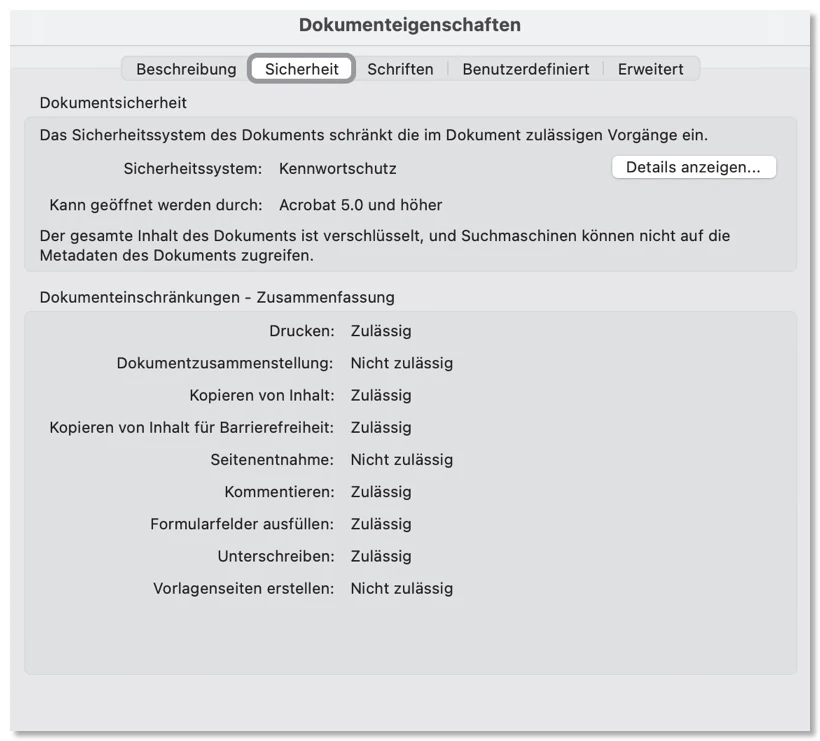
EmailSending email causes problems!
In our experience, 95% of the time the cause lies in your mail configuration!
Other users sometimes send us their solution – you should benefit from it here ;-)
"Dear Fahrtenbuch team,
only my wife's mail account was set up on the iPhone. Its password was out of date, so no mail was sent. After entering the correct password, the mail still couldn't be sent because the sender address wasn't right. Only after I set up my own mail account as the default account could I send mails from Fahrtenbuch without problems."
The remaining 5% can be solved by going through your export settings under "Settings" again and completing them if necessary.
CalendarEnter trips directly in the Apple calendar?
Already integrated!
You need iOS 4.x to use this function.
Alternatively, you can also export to a Google calendar.
Via Menu > Calendar > Subscribe, enter the Google calendar URL and password – done!
CSV export (Excel)Do I have to choose a separator?
Of course – otherwise the later data import into e.g. LibreOffice or Excel won't work!
The actual import into your office software is probably ☞ sufficiently documented on the web – here Microsoft Office as an example.
The separator in particular plays a central role, because it ensures all fields are cleanly separated when importing into your office application!
Example of the iOS export configuration:

(Of course we recommend the PDF export as a mileage log; in a business environment or for further processing, however, CSV is flexible – but of course not ☞ tamper-proof.)
Fahrtenbuch Pro (myLogbook)Can the Android Fahrtenbuch take over the data?
We're currently receiving a number of requests from Fahrtenbuch Pro (myLogbook) users asking for a tamper-proof data transfer, since Fahrtenbuch Pro (myLogbook) has apparently ceased operations.
As a rule, we're able to transfer the data tamper-proof into our Android Fahrtenbuch, but this involves effort and therefore (small) costs – please contact us directly!
TripTrackerCan the Android Fahrtenbuch take over the data?
We're currently receiving a number of requests from TripTracker users asking for a tamper-proof data transfer.
As a rule, we're able to transfer the data tamper-proof into our Android Fahrtenbuch, but this involves effort and therefore (small) costs – please contact us directly!
WISO FahrtenbuchHow do I import my trips?
Very easy – update your WISO Fahrtenbuch to the latest version (only it contains the import option in the menu).
(The import of course also works in WISO EÜR & Kasse, since WISO Fahrtenbuch is already integrated there as a module.)
Then, under "Settings" in the iPhone Fahrtenbuch, choose the WISO exporter under Export configuration > Mail attachment.
Now all you have to do is select the transfer symbol at the top right of the trip overview.
On the PC, take the export file from the email and import it via the WISO menu – "Data import..." > "from a mobile mileage log"

If you use WISO Fahrtenbuch on the Mac, proceed as follows:
Create a mileage log in WISO:

Then import the XML file exported on the iPhone / Android phone:

Then you must save your changes.
TIP | You can "fine-tune" each export interface in the Fahrtenbuch export settings with a "click" on the blue "i" or ">" symbol!
Here you can also map the WISO reasons exactly (from Fahrtenbuch 3.6.15):


And the data import is done!
(⚠️PLEASE NOTE: if you have ☞ inconsistent trips framed in "red" in your mileage log, the import is aborted and no trips are imported – make sure all trips in the mileage log are consistent and correctly maintained!)
DATEV FahrtenbuchHow do I import my trips?
After its discontinuation on 31.12.2017, DATEV is shutting down its own mileage log; it will only be possible to access previous billing data to a limited extent or not at all. We therefore strongly recommend all users to archive all audit-relevant evaluations of the last 10 years – either digitally as PDF files or in printed form.
As of now, we are an official DATEV Fahrtenbuch partner.
We therefore advise all customers to use our direct PDF export from now on!
Please note: the fields consultant number | client number | client name | personnel number | licence plate
In DATEV Fahrtenbuch, make sure that under Extras, Evaluation settings, the tick "Print customer/description in the place details" is set before you read in the data from Fahrtenbuch.
Select the DATEV exporter in Fahrtenbuch:


must contain exactly the same characters as in DATEV Fahrtenbuch on your PC!
The correct house number must be entered for all streets!
The export file must be in an empty folder before you import the file into DATEV!

TIP | You can "fine-tune" each export interface in the Fahrtenbuch export configuration with a "click" on the blue ">" symbol!
Important note: on the support side, the iPhone Fahrtenbuch team will gladly take care of a working export!
Once the export file is on your computer and problems occur, please contact DATEV support.
Lexware ReisekostenHow do I import my trips?
Very easy!
First go to the Fahrtenbuch export configuration, choose the export route you want and select the Lexware exporter. Tap the small blue "i" arrow to get to the detailed configuration, where you choose your Lexware version and enter your other details. Please note: in Lexware version 2014, set the export to version 2014 and, in Lexware under Extras -> Options -> Fahrtenbuch, set the distance details for imports to 100 metres – since Lexware unfortunately changes the kilometre format quite often, try this setting if, for example, 3 km became 3000 km after your import!
All fields marked in "yellow" must be maintained in the Lexware mileage log exactly as in the iPhone mileage log:


Please note: set travel expenses to "Yes"!
Then, under "Settings" in the iPhone Fahrtenbuch, choose the transfer you want under Export format (e.g. mail attachment, Dropbox) and then the Lexware exporter.
Now all you have to do is select the transfer symbol at the top right of the trip overview (on the iPhone).
After starting Lexware Reisekosten, go to the Reisekosten start page (important!) and then click > "Record trip":

Then take the export file from the email (or Dropbox) and import it via the menu – "File" > "Import" > "Electronic mileage log..."

Please check that first name, last name, personnel number and licence plate match exactly(!) – both on the iPhone and in Lexware Reisekosten – so that the import works cleanly!
TIP | You can "fine-tune" each export interface in the Fahrtenbuch export settings with a "click" on the blue ">" symbol!
Then follow the 3 steps of the import wizard – done!
If you get an error message like this during an import, the wrong Lexware version is selected in the export configuration – set the correct version and export again!

Euro-FahrtenbuchHow do I import my trips?
Very easy – update your Euro-Fahrtenbuch to the latest version (from version 5.2.0 you'll find the import option in the menu).
Then, under "Settings" in the iPhone Fahrtenbuch, choose the Euro-Fahrtenbuch exporter under Export configuration > Mail attachment (from iPhone Fahrtenbuch 3.5.7).
Now all you have to do is select the transfer symbol at the top right of the trip overview.
On the PC, take the export file from the email and import it via Euro-Fahrtenbuch – "Data import" > "Fahrtenbuch iPhone Edition"

You can "fine-tune" each export interface in the Fahrtenbuch export settings with a "click" on the blue ">" symbol!
And the import is done.
INtex FahrtenbuchHow do I import my trips?
Always open the exported data in a text editor – select everything and import it as described below!
The actual import works via your computer's "clipboard"!
PLEASE NOTE: you need the desktop version of INtex Fahrtenbuch – unfortunately INtex doesn't provide for importing into "INtex Web"; please contact INtex directly if you have questions about this!
Example format (the field names stay in German, as the import expects them):
Fahrten: 2
Startzeit1: 9:30
Ankunftszeit1: 9:45
Startdatum1: 1.11.2009
Ankunftsdatum1: 1.11.2009
Kilometer1: 60
Fahrer1: Martin Böhmer
Grund1: Kundenbesuch
Abfahrtsort1: Eitorf 53783
Zielort1: Köln 50667
Kategorie1: 3
Startzeit2: 10:30
Ankunftszeit2: 11:00
Startdatum2: 1.11.2009
Ankunftsdatum2: 1.11.2009
Kilometer2: 40
Fahrer2: Martin Böhmer
Grund2: Kundenbesuch
Abfahrtsort2: Köln 50667
Via2: Troisdorf 53840
Zielort2: Hennef 53773
Kategorie2: 3
Example format version 7:
Startzeit: 18:12
Ankunftszeit: 18:45
Startdatum: 14.09.2009
Ankunftsdatum: 14.09.2009
Kilometer: 38
Fahrer: Max Mustermann
Grund: Heimfahrt
Abfahrtsort: Köln 50667 Am Rheinufer 3
Zielort: Hennef 53773 Berlinerstraße 12
Kategorie: 3
Fahrzeug: XY Z 123
IMPORTANT! On Windows, be sure to open the attachment with WordPad!!
The data must be copied to the clipboard as a block of text and can then be imported into INtex Fahrtenbuch via the trips menu (see picture):

TIP | You can "fine-tune" each export interface in the Fahrtenbuch export configuration with a "click" on the blue ">" symbol!
INtex Fahrtenbuch 8
Fahrtenbuch-ExpressHow do I import my trips?
Very easy – update your Fahrtenbuch-Express to the latest version (only it contains the import option in the menu).
Then, under "Settings" in the iPhone Fahrtenbuch, choose the Fahrtenbuch-Express exporter under Export configuration.
Now all you have to do is select the transfer symbol at the top right of the trip overview.
On the PC, take the export file and import it via the menu:

TIP | You can "fine-tune" each export interface in the Fahrtenbuch export settings with a "click" on the blue ">" symbol!
SteuerpilotHow do I import my trips?
Very easy – update your Steuerpilot to the latest version.
Then, under "Settings" in the iPhone Fahrtenbuch, choose the Steuerpilot exporter under Export configuration (it's available in various export categories).
Make the in-app purchase (of course you only pay once and can then use the exporter in all export categories).
Now you can configure your Steuerpilot exporter by tapping the blue ">" arrow!
In the trip overview, all you have to do now is tap Export.
MonKey Office ReisekostenHow do I import my trips?
In the Fahrtenbuch settings > Export configuration, choose the MonKey exporter and the "export route" you want – then simply import the export file into your desktop version of MonKey Reisekosten!
The process for MonKey Office is identical, and Fahrtenbuch uses the exporter for both products.

MacHaBuHow do I import my trips?
Very easy – update your MacHaBu to the latest version.
Then, under "Settings" in the iPhone Fahrtenbuch, choose the MacHaBu exporter under Export configuration (it's only available in the "Web transfer" category).
Make the in-app purchase.
Now you can enter your MacHaBu server details by tapping the blue ">" arrow!
In the trip overview, all you have to do now is tap Export.
Fahrtenbuch.deHow do I import my trips? Updated
PLEASE NOTE | On 08.01.2016, Fahrtenbuch.de informed us that it would no longer support the iPhone Fahrtenbuch. According to Fahrtenbuch.de, the interface will continue to work for existing customers until 31.12.2016. We therefore advise all customers to use our direct PDF export from now on! (The interface seems to continue working in 2017 as well, but we haven't received official confirmation from the manufacturer and can't give any guarantee either; you can get more information at http://www.fahrtenbuch.de.)
PLEASE NOTE | Make sure to transfer your trips to Fahrtenbuch.de promptly – the Fahrtenbuch.de server can only process a maximum of 50 new trips; you avoid transfer problems if you transfer your trips regularly!
Fahrtenbuch.de from v. 11
PLEASE NOTE | Make sure the driver name, vehicle / licence plate etc. are entered correctly and completely in Fahrtenbuch and in Fahrtenbuch.de – if the data doesn't match correctly and consistently, problems with data synchronisation can occur. After creating your vehicle in Fahrtenbuch.de, click the cloud:

Click "Store on server":  click the cloud again: Now retrieve the pairing ID:
 Enter this pairing ID in the iPhone Fahrtenbuch for the corresponding vehicle:
 Done:
FahrtenbuchVehicleFahrtenbuch.de
Only enter the Fahrtenbuch.de code if you use Fahrtenbuch.de as desktop software.
- 1Enter the authorisation code
FahrtenbuchVehicleFahrtenbuch.de
- 1Connected, V11 detected
Now just choose the Fahrtenbuch.de exporter in the export configuration of the iPhone Fahrtenbuch and tap the export arrow at the top right of the trip overview!
Afterwards, click the cloud "Fetch from server" in the Fahrtenbuch.de software again; so that the iPhone can send data again next time, always click "Store on server" afterwards:


Fahrtenbuch.de up to v. 10
In the Fahrtenbuch.de software, click "Vehicle properties" –
To set up your vehicle for recording, first open it. Then choose the menu item "Properties" in the Fahrtenbuch menu.

and select your vehicle.
The window for editing the vehicle data appears. On the Internet import tab you'll find the options for recording trips via the internet.

To record trips from the iPhone, first select the corresponding entry in the list under "Internet import for".
So that you can send data from the iPhone to the mileage log, the following two steps are now required:
- You turn on the iPhone import – this creates an account for receiving trips on the Fahrtenbuch.de server.
- You enter an activation code on the iPhone – this allows your trips to be assigned to an account on the Fahrtenbuch server.
Turning on the iPhone import
This requires an email address. This address isn't used for data transfer, but we need the contact address so we can contact you if necessary (for example in the event of server maintenance). You're welcome to use an anonymous address from a free provider. Fahrtenbuch.de will only contact you via this address to inform you about changes to the interface or important facts about the server status.

Then click "Turn on import for iPhone (meyer-solutions)". The program now contacts Fahrtenbuch.de and sets up a mailbox for your mileage log there. You receive an activation code that identifies this mailbox.
To complete the setup, enter this activation code in the iPhone app. The iPhone software then pairs automatically with the Fahrtenbuch.de server.
Please note that the activation code is only valid for 15 minutes. It must be entered on the iPhone within this time so that the iPhone can connect permanently to Fahrtenbuch.de.
In the iPhone Fahrtenbuch, just choose the Fahrtenbuch.de exporter under Export format in the settings.
Enter the activation code – done!

FahrtenbuchVehicleFahrtenbuch.de
Only enter the Fahrtenbuch.de code if you use Fahrtenbuch.de as desktop software.
- 1Enter the authorisation code
FahrtenbuchVehicleFahrtenbuch.de
- 1Connected, version is not V11
The data is uploaded via Wi-Fi | GSM/UMTS, depending on which network you're currently on.
GoogleTransfer to Google Calendar?
INtex, CSV, TSV create a calendar entry in the Google calendar specified in the vehicle
GoogleTransfer to Google Spreadsheet?
TSV creates a spreadsheet and uploads it to Google Docs
ExportWhich data formats are supported?
You'll find all interfaces here!
StempeluhrWill there be data exchange with Stempeluhr?
Yes! The data exchange is already implemented.
Start Fahrtenbuch and tap "Stempeluhr transfer" via the quick menu button at the top left.
Stempeluhr must of course be installed!
PrivacyInformation about the collection, processing and use of your data!
Information about the collection, processing and use of your data! In principle, using the app does not collect, process, store and/or use any of your personal data.
Personal data is only collected if you actively provide it to us yourself. We then use this data only as far as necessary to provide the respective service, e.g. to answer support emails, handle problem reports, etc. Under no circumstances is data passed on, rented or sold for advertising or other marketing purposes. Location data, route recordings, addresses etc. are stored exclusively on your device in the app's database and are never transferred to our servers. Databases that users actively provide to us for support purposes are deleted as soon as the data is no longer needed to solve the problem!
All information, calculations and content of this app are compiled with care. However, they do not replace tax, legal or other professional advice.
No matching answer found
Try another search term, search all manuals or write to us using the contact form.